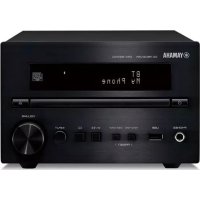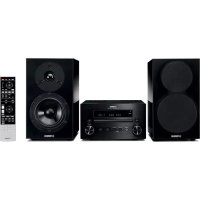
RDXE700 - Audio System YAMAHA - Free user manual and instructions
Find the device manual for free RDXE700 YAMAHA in PDF.



| Product type | DVD receiver (audio system) |
| Dimensions (W x H x D) | 215 x 112.8 x 295.9 mm |
| Weight | 2.65 kg |
| Power supply | 120 V, 60 Hz (Canada/USA); 230 V, 50 Hz (Europe); 220-240 V, 50/60 Hz (Asia) |
| Power consumption | 30 W (active); 0.9 to 1.1 W (standby depending on region) |
| Output power | 2 x 20 W (6 Ω, 1 kHz, 0.18% THD); max 2 x 30 W |
| Supported disc formats | DVD-Video, Video CD, Audio CD, MP3, WMA, DivX, JPEG |
| Radio tuner | FM (87.50-108.00 MHz) and AM (522-1700 kHz depending on region) |
| Main functions | Programmed, random, repeat playback; sleep timer; equalizer (Rock, Pop, Jazz, Classic, Flat); progressive scan; optical digital output |
| Video outputs | Composite, component (Y/Pb/Pr), SCART (European models) |
| Audio connectivity | AUX inputs (analog), AUX outputs, optical digital output, headphone jack |
| Operating temperature | +5 °C to +35 °C |
| Operating humidity | 5 to 90% (no condensation) |
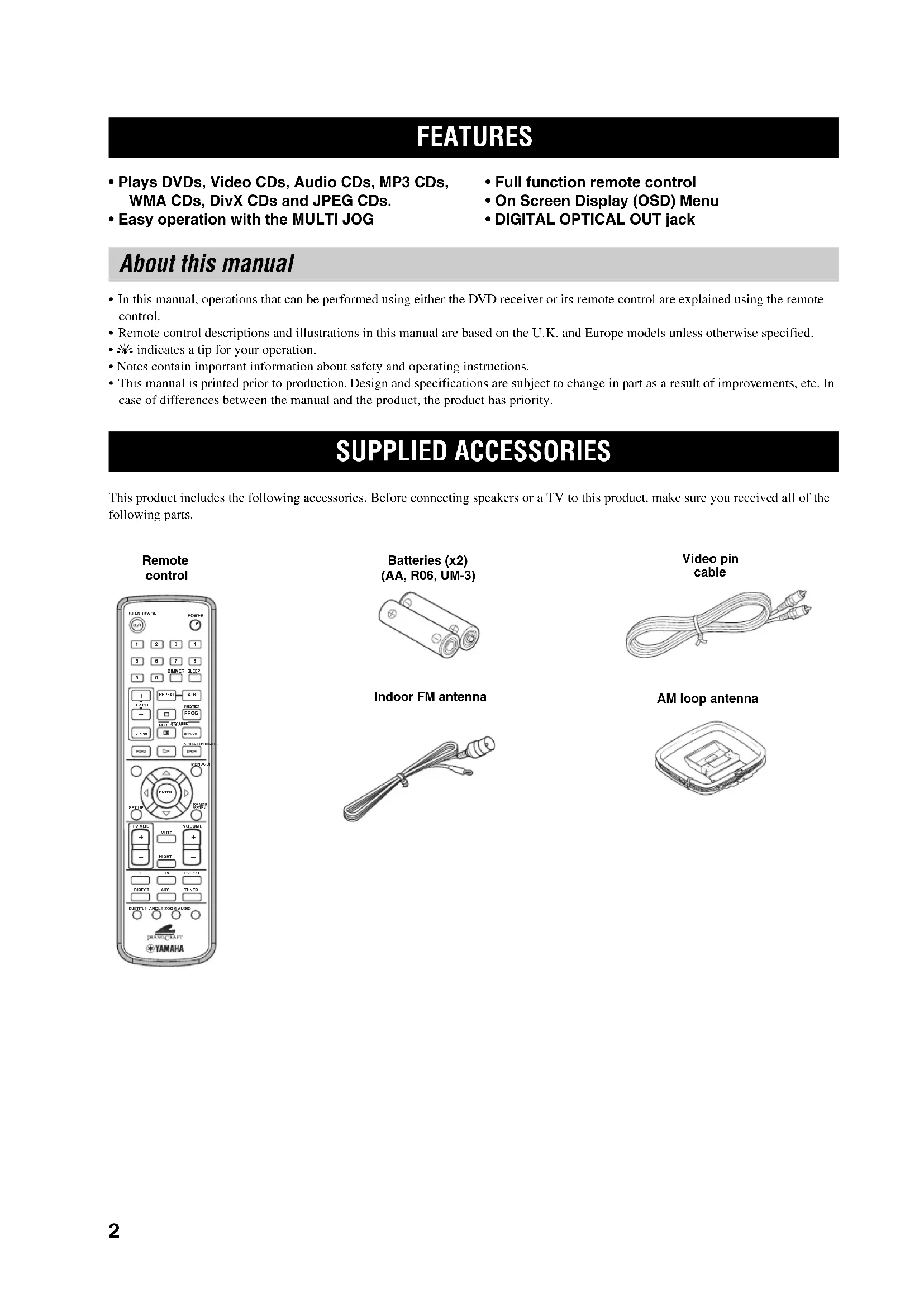
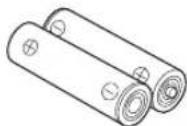
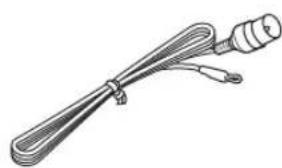
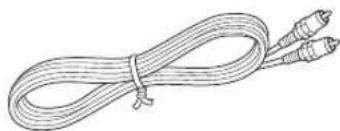
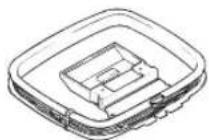
| Supplied accessories | Remote control, AM loop antenna, FM indoor antenna, RCA video cable, batteries |
| Maintenance and cleaning | Clean with a dry, clean cloth; do not use chemical solvents |
| Safety | Do not expose to rain or moisture; do not open the cabinet; unplug during a storm |
| Serviceability | Do not attempt to repair yourself; contact YAMAHA service |
| Spare parts | Contact your YAMAHA dealer or an authorized service center |
Frequently Asked Questions - RDXE700 YAMAHA
User questions about RDXE700 YAMAHA
0 question about this device. Answer the ones you know or ask your own.
Ask a new question about this device
Download the instructions for your Audio System in PDF format for free! Find your manual RDXE700 - YAMAHA and take your electronic device back in hand. On this page are published all the documents necessary for the use of your device. RDXE700 by YAMAHA.
USER MANUAL RDXE700 YAMAHA
micro component system
PIANOCRAFT
OWNER S MANUAL
MODE D EMPLOI
BEDIENUNGSANLEITUNG
BRUKSANVISNING
I To assure the finest performance, please read this manual carefully. Keep it in a safe place for future reference.
2 Install this sound system in a well ventilated, cool, dry, clean place with at least 10 cm on the top, 10 cm on the left and right, and 10 cm at the back of RDX-E700 — away from direct sunlight, heat sources, vibration, dust, moisture, and/or cold.
3 Locate this unit away from other electrical appliances, motors, or transformers to avoid humming sounds.
4 Do not expose this unit to sudden temperature changes from cold to hot, and do not locate this unit in an environment with high humidity (i.e. a room with a humidifier) to prevent condensation inside this unit, which may cause an electrical shock, fire, damage to this unit, and/or personal injury.
5 Avoid installing this unit where foreign object may fall onto this unit and/or this unit may be exposed to liquid dripping or splashing. On the top of this unit, do not place:
- Other components, as they may cause damage and/or discoloration on the surface of this unit.
– Burning objects (i.e. candles), as they may cause fire, damage to this unit, and/or personal injury.
- Containers with liquid in them, as they may fall and liquid may cause electrical shock to the user and/or damage to this unit.
6 Do not cover this unit with a newspaper, tablecloth, curtain, etc. in order not to obstruct heat radiation. If the temperature inside this unit rises, it may cause fire, damage to this unit, and/or personal injury.
7 Do not plug in this unit to a wall outlet until all connections are complete.
8 Do not operate this unit upside-down. It may overheat, possibly causing damage.
9 Do not use force on switches, knobs and/or cords.
10 When disconnecting the power cable from the wall outlet, grasp the plug; do not pull the cable.
11 Do not clean this unit with chemical solvents; this might damage the finish. Use a clean, dry cloth.
12 Only voltage specified on this unit must be used. Using this unit with a higher voltage than specified is dangerous and may cause fire, damage to this unit, and/or personal injury. YAMAHA will not be held responsible for any damage resulting from use of this unit with a voltage other than specified.
13 To prevent damage by lightning, keep the power cord and outdoor antennas disconnected from a wall outlet or the unit during a lightning storm.
14 Do not attempt to modify or fix this unit. Contact qualified YAMAHA service personnel when any service is needed. The cabinet should never be opened for any reasons.
15 When not planning to use this unit for long periods of time (i.e. vacation), disconnect the AC power plug from the wall outlet.
16 Be sure to read the "TROUBLESHOOTING" section on common operating errors before concluding that this unit is faulty.
17 Before moving this unit, press STANDBY/ON to set this unit in standby mode, and disconnect the AC power plug from the wall outlet.
18 Condensation will form when the surrounding temperature changes suddenly. Disconnect the power cable from the outlet, then leave the unit alone.
19 When using the unit for a long time, the unit may become warm. Turn the power off, then leave the unit alone for cooling.
This unit is not disconnected from the AC power source as long as it is connected to the wall outlet, even if this unit itself is turned off. This state is called the standby mode. In this state, this unit is designed to consume a very small quantity of power.
FOR CANADIAN CUSTOMERS
To prevent electric shock, match wide blade of plug to wide slot and fully insert.
This Class B digital apparatus complies with Canadian ICES-003.
DANGER
When this unit is plugged to the wall outlet, do not place your eyes close to the opening of the disc tray and other openings to look into inside.
The laser component in this product is capable of emitting radiation exceeding the limit for Class 1.
WARNING
TO REDUCE THE RISK OF FIRE OR ELECTRIC SHOCK, DO NOT EXPOSE THIS APPLIANCE TO RAIN OR MOISTURE.
■For U.K. customers
If the socket outlets in the home are not suitable for the plug supplied with this appliance, it should be cut off and an appropriate 3 pin plug fitted. For details, refer to the instructions described below.
Note
The plug severed from the mains lead must be destroyed, as a plug with bared flexible cord is hazardous if engaged in a live socket outlet.
■Special Instructions for U.K. Model
IMPORTANT
THE WIRES IN MAINS LEAD ARE COLOURED IN ACCORDANCE WITH THE FOLLOWING CODE:
Blue: NEUTRAL
Brown: LIVE
As the colours of the wires in the mains lead of this apparatus may not correspond with the coloured markings identifying the terminals in your plug, proceed as follows: The wire which is coloured BLUE must be connected to the terminal which is marked with the letter N or coloured BLACK. The wire which is coloured BROWN must be connected to the terminal which is marked with the letter L or coloured RED.
Making sure that neither core is connected to the earth terminal of the three pin plug.
CONTENTS
INTRODUCTION
FEATURES....2
About this manual.... 2
SUPPLIED ACCESSORIES 2
CONTROLS AND FUNCTIONS .... 3
Front panel 3
Display....4
Remote control.... 5
PREPARATION
CONNECTING SPEAKERS 7
Connecting speakers....8
Connecting a subwoofer 8
CONNECTING A TV....9
CONNECTING ANTENNAS.... 10
Connecting the AM loop antenna.... 10
Connecting the FM antenna.... 10
CONNECTING EXTERNAL
COMPONENTS 11
Connecting a CD recorder or MD recorder ..... 11
Connecting the Power Cables.... 12
INSTALLING BATTERIES IN THE REMOTE
CONTROL....13
USING THE REMOTE CONTROL .... 13
BASIC OPERATION
TURNING THE POWER
TO ON/STANDBY 14
SELECTING AN INPUT SOURCE.... 14
ADJUSTING THE VOLUME LEVEL ...... 15
MUTING THE SOUND (MUTE) 15
ADJUSTING THE CLOCK.... 16
SETTING THE TIMER 16
SETTING THE SLEEP TIMER.... 17
CHANGING DVD SETTING ON THE TV
(OSD MENU)....19
Operating the OSD menu.... 19
OSD guide 20
SUPPORTED DISC TYPES 21
BASIC PLAYBACK OPERATIONS.... 22
USEFUL PLAYBACK OPERATIONS ...... 23
Customizing playback order (Program Play) ...... 23
Playing back randomly (Random Play).... 24
Playing back repeatedly (Repeat Play) 25
Operating disc menus (DVD menu/Video CD Playback Control).... 27
SELECTING AUDIO, SUBTITLE
AND ANGLE 28
Selecting Audio and Subtitle Languages.... 28
Selecting a Viewing Angle.... 28
ZOOMING IMAGES ......29
USING GUI....30
(NTSC/PROGRESSIVE SCAN)......31
ENJOYING MULTIMEDIA FILES
ON DISCS 32
TUNING RADIO STATIONS ....33
Tuning radio stations automatically (Auto Tuning).... 33
Tuning radio stations manually (Manual Tuning)... 33
Selecting preset radio stations (Preset Tuning) ..... 34
Receiving FM Radio Data System stations (U.K. and Europe models only).... 34
PRESETTING RADIO STATIONS ....36
Presetting radio stations automatically (Auto Preset)....36
Presetting radio stations manually (Manual Preset) 36
Editing the name of preset radio stations.... 37
ADVANCED OPERATION
PLAYING BACK EXTERNAL SOURCES......38
TV playback 38
Other component playback.... 38
RECORDING SOURCES WITH EXTERNAL COMPONENTS....39
Recording audio sources with the DVD receiver .... 39
ADJUSTING SOUNDS ....40
Adjusting Sound Settings 40
Night listening mode 41
CONTROLLING EXTERNAL
COMPONENTS......42
Setting remote control codes 42
Available operations 43
ADDITIONAL INFORMATION
TROUBLESHOOTING ....44
General.... 44
Remote control 45
Disc playback 46
Radio reception.... 47
ADDITIONAL INFORMATION......48
Disc Information.... 48
Handling a disc 49
GLOSSARY....50
Audio formats 50
Audio information 50
Video signal information.... 51
Copyright and logo marks 51
SPECIFICATIONS....52
FEATURES
- Plays DVDs, Video CDs, Audio CDs, MP3 CDs, WMA CDs, DivX CDs and JPEG CDs.
- Easy operation with the MULTI JOG
• Full function remote control
- On Screen Display (OSD) Menu
• DIGITAL OPTICAL OUT jack
About this manual
- In this manual, operations that can be performed using either the DVD receiver or its remote control are explained using the remote control.
- Remote control descriptions and illustrations in this manual are based on the U.K. and Europe models unless otherwise specified.
- indicates a tip for your operation.
- Notes contain important information about safety and operating instructions.
- This manual is printed prior to production. Design and specifications are subject to change in part as a result of improvements, etc. In case of differences between the manual and the product, the product has priority.
SUPPLIED ACCESSORIES
This product includes the following accessories. Before connecting speakers or a TV to this product, make sure you received all of the following parts.
Remote control
Batteries (x2) (AA, R06, UM-3)
Indoor FM antenna
natural_image
Line drawing of a coiled cable or connector with two connectors (no text or symbols)Video pin cable
natural_image
Line drawing of a coiled cable with two connectors (no text or symbols)AM loop antenna
CONTROLS AND FUNCTIONS
Front panel
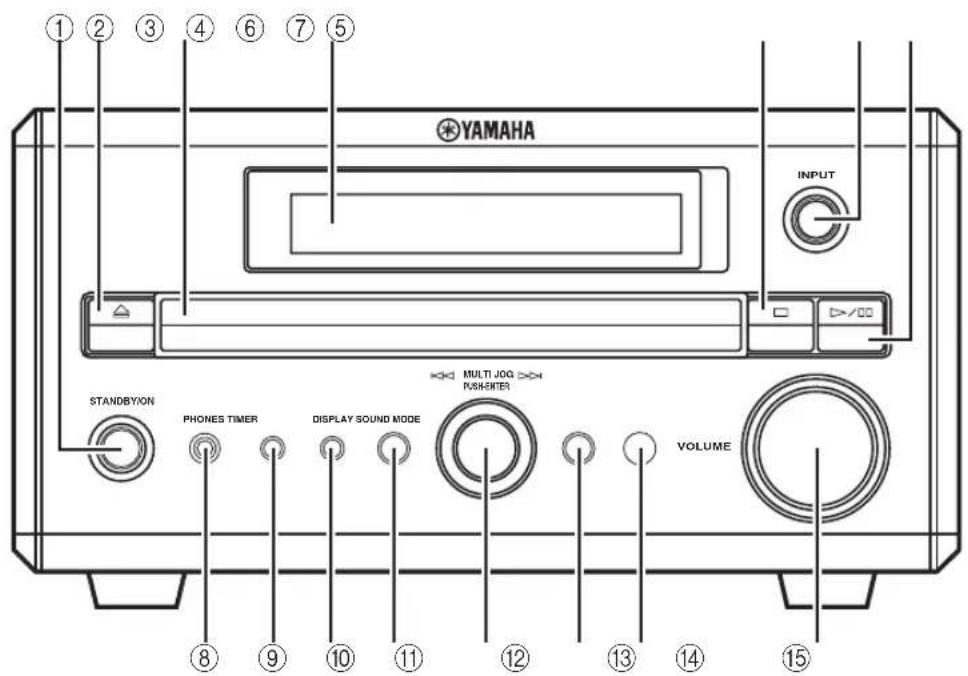
①STANDBY/ON
Turns this unit on. Press this button again to set the unit to the standby mode (page 14).
②
Opens and closes the disc tray. Pressing during standby mode turns on the DVD receiver and sets the input source to DVD/CD.
③Disc tray
Holds a disc to be played.
④Display
Displays playback information or settings (page 4).
⑤□
Stops disc playback.
⑥INPUT
Selects an input source.
⑦▶/oo
Starts and pauses disc playback.
⑧PHONES jack
Connects headphones.
⑨TIMER
Sets the DVD receiver to the timer play mode or sleep mode.
⑩DISPLAY
Displays the status information such as the elapsed time of current track/chapter.
⑪ SOUND
Switches the sound settings to be adjusted.
⑫MULTI JOG
Adjusts various settings and the frequency when tuning radio station. You can also skip chapters or tracks when the input source is set to DVD/CD.
⑬MODE
Supports MULTI JOG and enables various operations.
⑭ Remote control sensor
Receives signals from the remote control.
⑮VOLUME
Adjusts the volume level.
Display
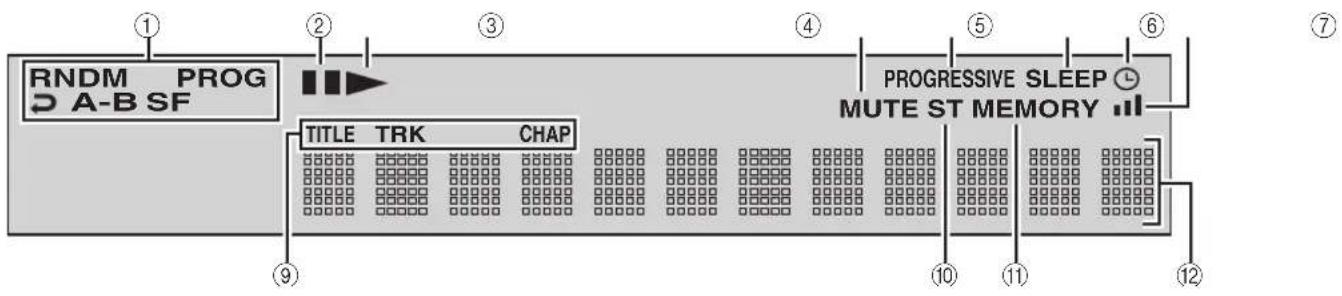
1 Playback mode indicator
Displays the icon for the selected playback mode.
2 Pause icon
Lights up when disc playback is paused.
3 Playback icon
Lights up during disc playback.
4 MUTE
Lights up when the mute function is activated.
5 PROGRESSIVE
Lights up when the progressive scan function is activated.
6 SLEEP
Lights up when the sleep timer function is activated.
7
Lights up when the timer play function is activated.
8
Lights up when receiving a strong radio signal when the input source is set to AM or FM.
9 Display mode indicator
Lights up depending on the disc type.
0 ST
Lights up when receiving a strong FM radio signal in the FM stereo mode.
A MEMORY
Lights up or blinks when presetting an FM/AM radio station.
B Display
Displays various information such as a title, chapter or track number, or elapsed playing time.
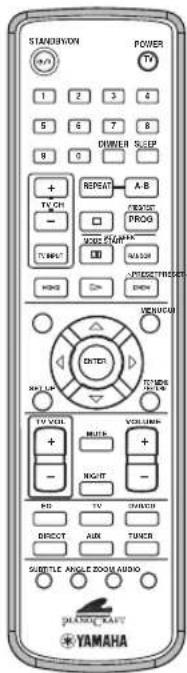
Remote control
flowchart
graph TD
    A["DVD/CD"] --> B["Playback"]
    A --> C["Subtitle and audio language selection, etc."]
    D["FM/AM"] --> E["Radio station tuning"]
    D --> F["Radio station preset, etc."]
    G["TUNER mode"] --> H["TV"]
    G --> I["TV"]
    G --> J["TV"]
    G --> K["TV"]
    G --> L["TV"]
    M["DVD/CD"] --> N["TUNER"]
    O["PIANDCRAFT"] --> P["YAMAHA"]
■Common functions
Note
Remote control descriptions and illustrations in this manual are based on the U.K. and Europe models unless otherwise specified.
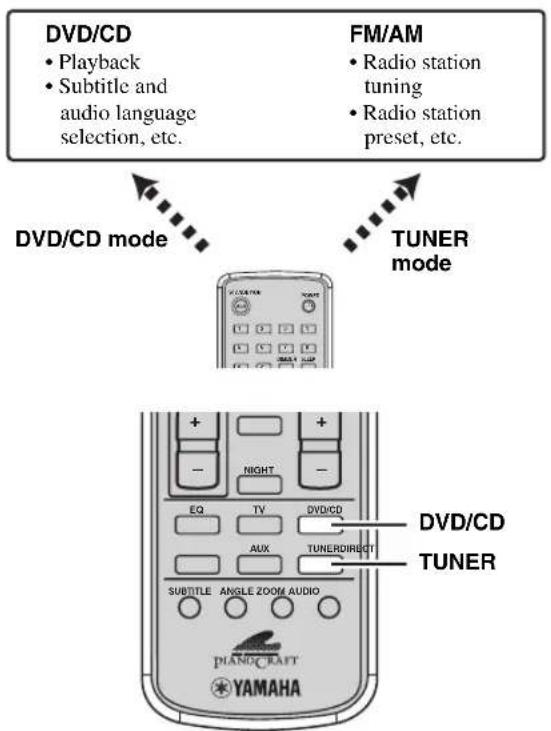
The DVD receiver has two main operation modes. Before operating functions in each mode, you need to select a mode to change the remote control button assignments.
To switch the operation mode
• DVD/CD mode: Press DVD/CD.
- TUNER mode: Press TUNER. For details on tuner operations, refer to “TUNING RADIO STATIONS” (page 33).
[NO TEXT]
You can also operate the TV and other components connected to the DVD receiver using the remote control. For details, refer to "CONTROLLING EXTERNAL COMPONENTS" (page 42).
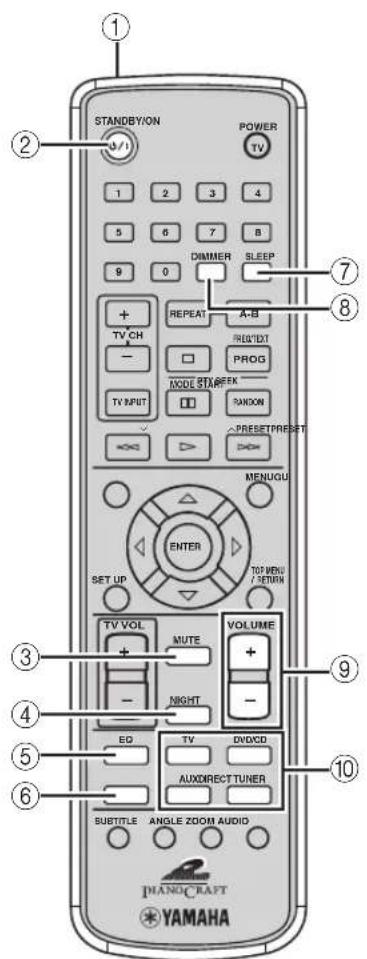
Operations common to all modes
①Infrared signal transmitter
Sends signals to the DVD receiver.
②STANDBY/ON ( )∅/I
Turn the DVD receiver on, or set it to the standby mode (page 14).
③MUTE
Turns off the volume. Press again to resume the volume.
④NIGHT
Switches the night listening mode on or off (page 41).
⑤EQ
Switches the EQ MODE (page 40).
⑥DIRECT
Switches the DIRECT mode on or off.
⑦SLEEP
Sets the sleep timer (page 17).
⑧DIMMER
Changes the brightness of the display (page 18).
⑨VOLUME +/-
Adjusts the overall volume level.
⑩Input selection buttons
Selects the input source of the DVD receiver (page 14).
■DVD/CD mode Operations available only in DVD/CD mode
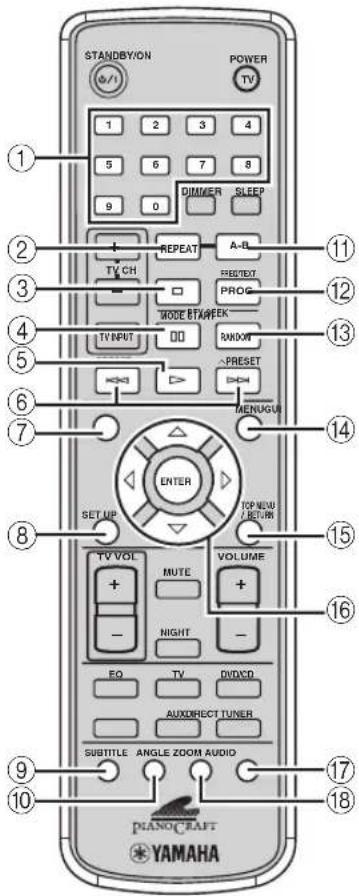
①Number buttons (1 to 9, 0)
Press these buttons to enter numbers.
②REPEAT
Enables the Repeat Play mode (page 25).
③□
Stops disc playback.
④00
Pauses disc playback.
⑤
Starts disc playback.
⑥
Skips to the start of the current chapter/track or next chapter/track.
⑦GUI
Displays the status information such as the elapsed time of current track/chapter on the TV screen.
⑧SET UP
Displays the OSD menu on the TV screen (page 19).
⑨ SUBTITLE
Selects subtitle language (page 28).
⑩ANGLE
Selects a viewing angle (page 28).
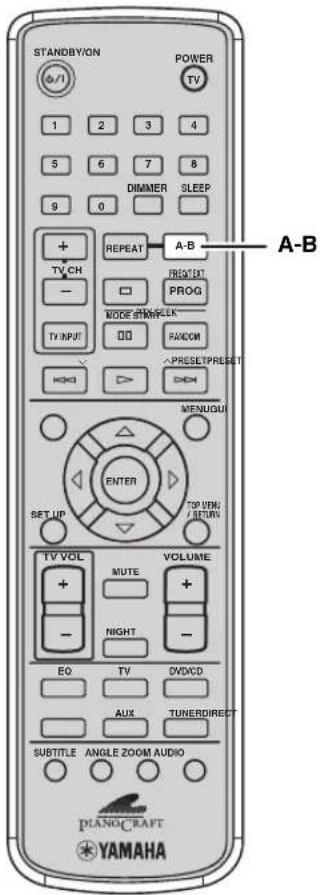
⑪A-B
Enables the A-B Repeat mode (page 26).
⑫PROG
Enables the Program Play mode (page 23).
⑬RANDOM
Enables the Random Play mode (page 24).
⑭MENU
Displays the DVD menu on the TV screen (page 27).
⑮TOP MENU/RETURN
Returns the DVD menu to the previous screen (page 27).
⑯ △ / ▽ / ◀ / ▷ / ENTER
Operates the OSD menu (page 19).
⑰AUDIO
Selects audio language (page 28).
⑱ZOOM
Zooms in a specified part of picture (page 29).
CONNECTING SPEAKERS
Follow the procedure below to connect speakers to the DVD receiver. Here, the connection example uses the YAMAHA NX-E700 (consisting of two speakers) and its supplied cables. For information on your speakers, refer to the owner's manual for the speakers.

You can also use commercially available speakers (see page 8).
Notes
- Do not connect the power cable of the DVD receiver until all cable connections are completed.
- Be sure to connect the left channel (L), right channel (R), “+” (red) and “−” (black) properly. If the connections are faulty, no sound will be heard from the speakers, and if the polarity of the speaker connections is incorrect, the sound will be unnatural and lack bass.
- Do not let the bare speaker wires touch each other or do not let them touch any metal part of this unit. This could damage the DVD receiver and/or the speakers.
- Use speakers with the specified impedance shown on the rear panel of this unit.
- Use magnetically shielded speakers. If this type of speakers still creates the interference with the monitor, place the speakers away from the monitor.
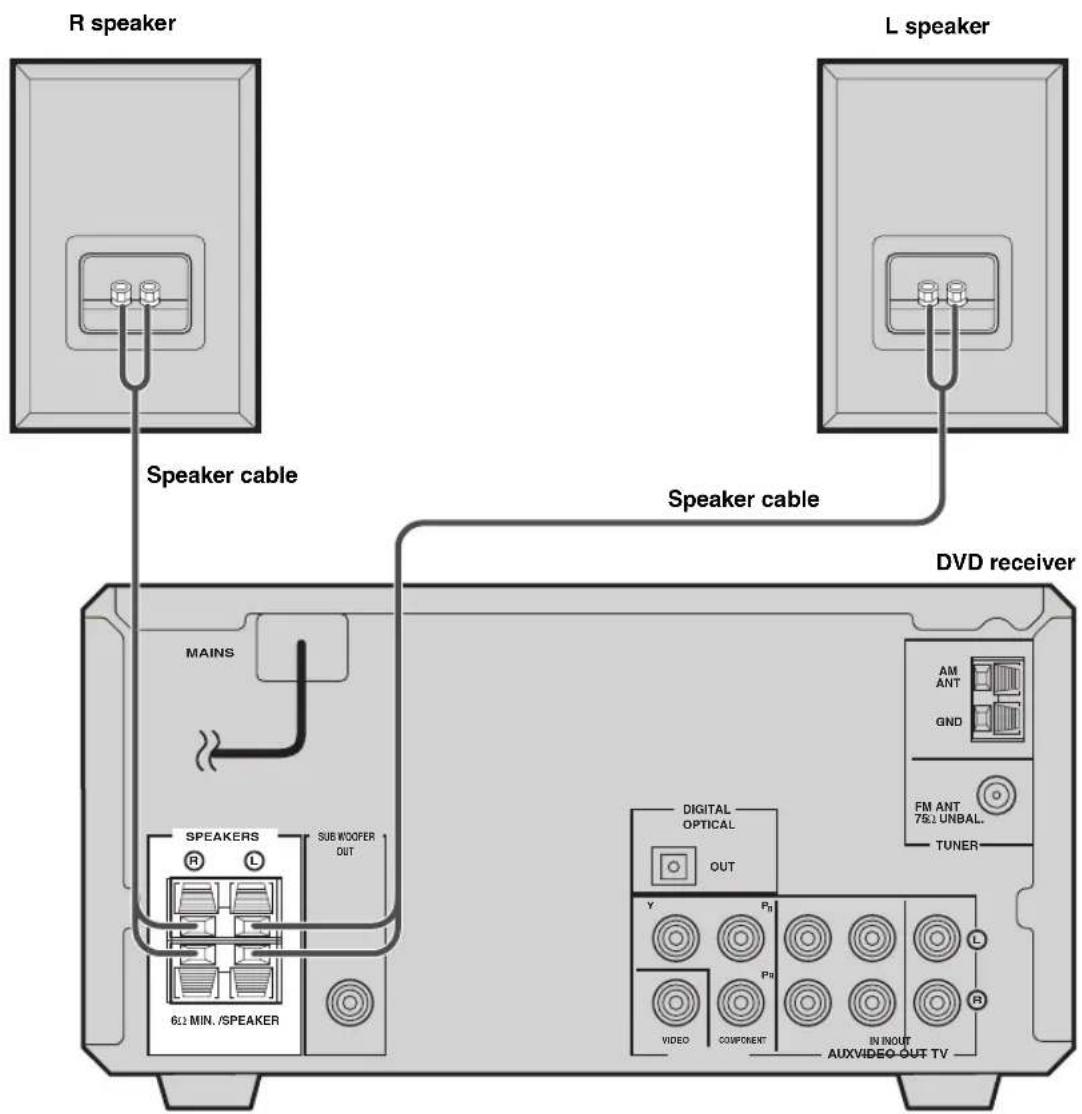
Connecting speakers
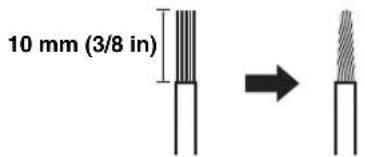
1 Remove approximately 10 mm (3/8 in) of insulation from the end of each speaker cable and twist the exposed wires of the cable together to prevent short circuits.
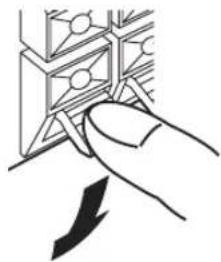
2 Press and hold the lever.
natural_image
Hand inserting a component into a grid-like structure with an arrow indicating direction (no text or symbols)Red: positive (+) Black: negative (−)
3 Insert one bare wire. By releasing the lever, the lever is replaced.
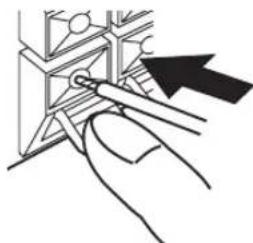
natural_image
Illustration of a hand using a tool to adjust or install a mechanical component (no text or symbols visible)Red: positive (+) Black: negative (−)
■Notes on the speaker cord
A speaker cord is actually a pair of insulated cables running side by side. One cable is colored or shaped differently, perhaps with a stripe, groove or ridge. Connect the striped (grooved, etc.) cable to the “+” (red) terminals on the DVD receiver and your speaker. Connect the plain cable to the “−” (black) terminals on the DVD receiver and your speaker.
Connecting a subwoofer
Connect the SUBWOOFER OUT jack on the DVD receiver to the INPUT jack on the subwoofer using the subwoofer cable.
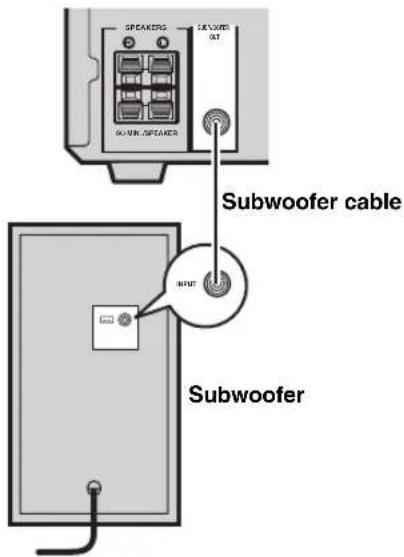
Notes
- Do not connect the power cable of the DVD receiver or subwoofer until all cable connections are completed.
- The low frequency range of the downmixed sound is output at the SUBWOOFER OUT jack.
CONNECTING A TV
Follow the procedure below to connect your TV to the DVD receiver using the supplied video pin cable and audio cables (sold separately). Also, you can enjoy high-quality pictures with a component video connection or a scart connection (U.K. and Europe models only). For information about your TV, refer to the supplied manual.
Notes
- Do not connect the power cable of the DVD receiver until all cable connections are completed.
- Turn off the TV before connecting it to the DVD receiver.
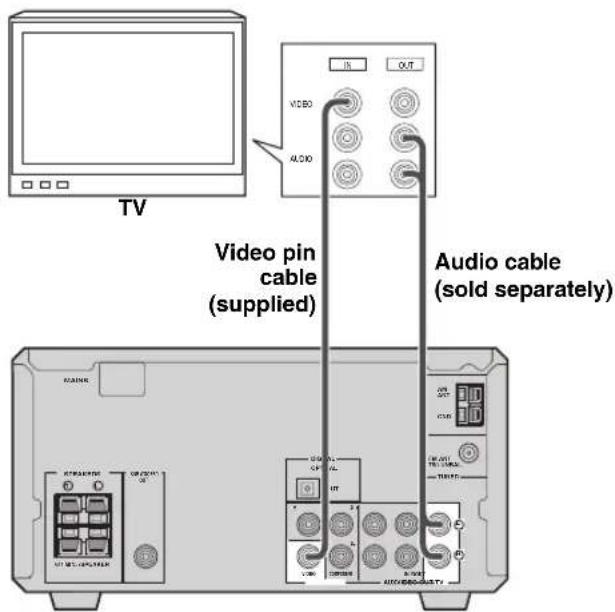
1 Connect the VIDEO jack on the DVD receiver to the video input jack on your TV using the supplied video pin cable.
2 To output sound from the speakers connected to the DVD receiver, connect the TV IN jacks on the DVD receiver to the audio output jacks on your TV using an audio pin cable (sold separately).
■Other connection methods
To make a component video connection or a scart connection (U.K. and Europe models only), a corresponding cable is required.
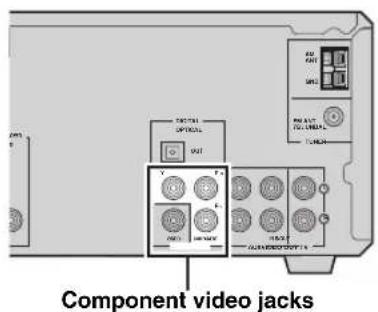
Component video connection
Connect the VIDEO OUT COMPONENT jacks on the DVD receiver to the component video input jacks on your TV using a commercially available component video cable.
Scart connection (for U.K. and Europe models)
Connect the AV terminal on the DVD receiver to the scart input terminal on your TV using a commercially available scart cable.
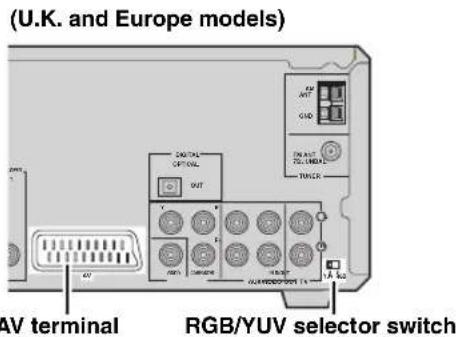
RGB/YUV selector switch
Selects the terminal where the video signals are output at. Slide this switch to the YUV position to output the component signals at the COMPONENT jacks. Slide this switch to the RGB position to output the RGB signals at the AV terminal.
Note
When the RGB/YUV selector switch is set to "RGB", Progressive Scan (page 31) is not available.
CONNECTING ANTENNAS
To enjoy radio on the DVD receiver, you need to connect AM and FM antennas to the DVD receiver. This product includes an AM loop antenna and indoor FM antenna. If there is a problem of weak radio wave reception in your area or you want to improve radio reception, we recommend that you use optional outdoor antennas. For details, consult the nearest authorized YAMAHA dealer or service center.
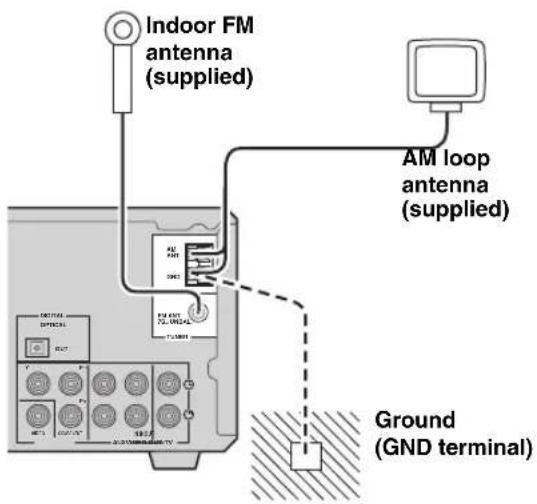
■About grounding
For maximum safety and minimum interference, connect the antenna GND terminal to a good earth ground. A good earth ground is a metal stake driven into moist earth.
Connecting the AM loop antenna
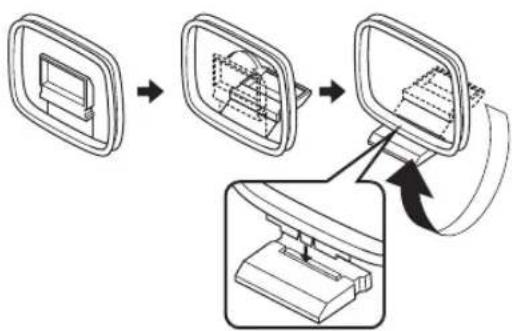
1 Attach the antenna stand to the antenna.
When attaching the antenna to the wall, you do not need to use the antenna stand.
flowchart
graph TD
    A["Screen Screen"] --> B["Internal Components"]
    B --> C["Computer Monitor"]
2 Press and hold the tab.
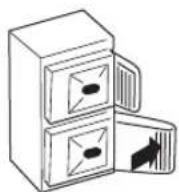
3 Insert the AM loop antenna lead wires into the AM ANT terminal.
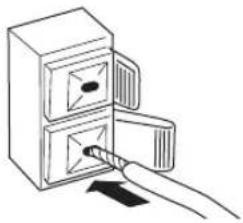
natural_image
Line drawing of a hand inserting a cable into a two-hole refrigerator (no text or symbols)4 Release the tab.
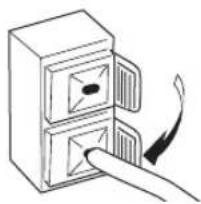
natural_image
Line drawing of a hand inserting a card into a two-tiered drawer (no text or symbols)5 Repeat steps 2 to 4 to insert the AM loop antenna lead wires into the GND terminal.
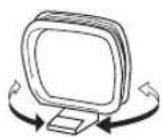
6 Place the antenna away from the DVD receiver and speaker cables.
While listening to the radio, rotate the antenna head to find the best angle for reception.
Connecting the FM antenna
1 Connect the supplied indoor FM antenna to the FM ANT jack on the DVD receiver.
2 Place the antenna away from the DVD receiver and speaker cables.
CONNECTING EXTERNAL COMPONENTS
You can connect external components such as a CD recorder or MD recorder to the following jacks on the DVD receiver. This section provides an example of other equipment connections. For information on your equipments, refer to the manuals for them.
Connecting a CD recorder or MD recorder
If you connect a CD recorder or MD recorder to the DVD receiver using optical cables, you can record audio sources played on the DVD receiver digitally. Also, you can enjoy audio sources played on the recorder with the DVD receiver.

AM/FM broadcasts cannot be output from this unit's DIGITAL OPTICAL OUT jack. To record AM/FM broadcasts, use a commercially available audio cable to connect the AUX OUT jack on the DVD receiver to the analog input jack on your recorder.
Notes
- Turn off the component before connecting it to the DVD receiver.
- Do not connect the power cable of the DVD receiver until all cable connections are completed.
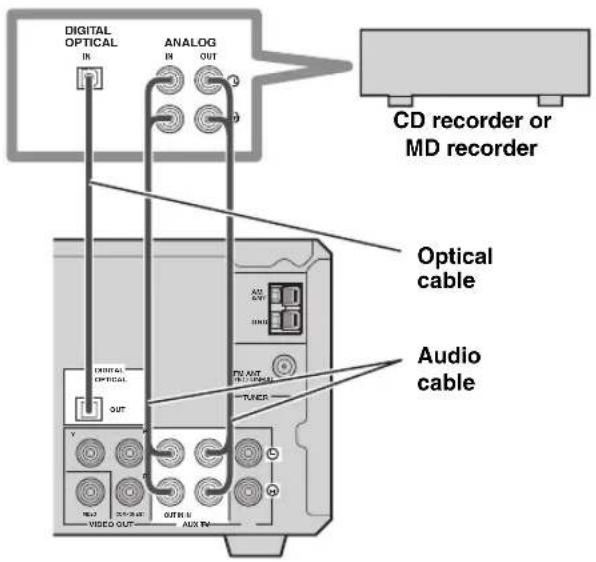
1 Connect the DIGITAL OPTICAL OUT jack on the DVD receiver to the digital input jack on the recorder using an optical cable.
2 Connect the AUX OUT jacks on the DVD receiver to the analog input jacks on the recorder using an audio cable.
3 Connect the AUX IN jacks on the DVD receiver to the analog output jacks on the recorder using an audio cable.
■About the AUX jacks
- The signal input from the AUX IN jack is not output from the AUX OUT jack.
- The DVD receiver's digital and analog signal circuits are independent of each other. Analog input signals are output only from analog output jacks.
■About the DIGITAL jack
- The digital jack is compatible with PCM, Dolby Digital and DTS signals.
- The digital jack is designed based on EIA standards. To make a digital connection, use an optical cable that meets EIA standards.

This unit can output a DTS signal digitally. To reproduce a DTS encoded source, connect the DIGITAL OPTICAL OUT jack on the DVD receiver to the digital input jack on a component that features a DTS decoder.
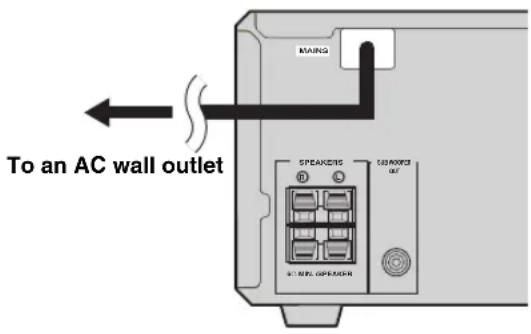
Connecting the Power Cables
After you made all connections, connect the power cables of the DVD receiver and subwoofer (optional).
INSTALLING BATTERIES IN THE REMOTE CONTROL
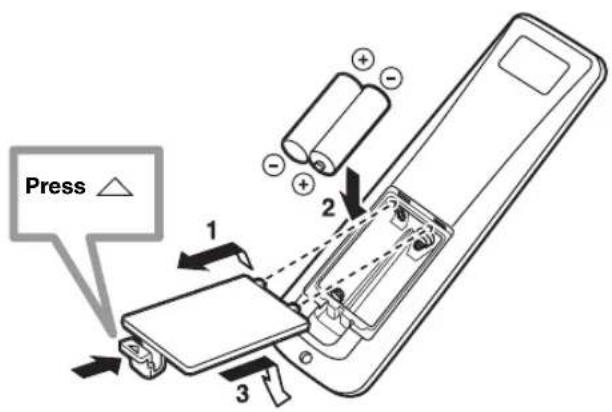
■To replace the batteries
Change all of the batteries if the operation range of the remote controls decreases.
Notes
- Do not use an old battery together with new one.
- Do not use different types of batteries (for example, alkaline and manganese) together. Each type of battery has its own characteristics even if they are similar in shape.
- If the batteries run out, immediately remove them from the remote control to prevent an explosion or acid leak.
- Dispose of the batteries according to the regional regulations.
- If a battery starts leaking, dispose of it immediately. Be careful not to let leaking battery acid come into contact with your skin or clothing. Before inserting new batteries, wipe the compartment clean.
- Replace the batteries within two minutes to preserve the memory in the remote control.
1 Press the mark on the battery cover and open the cover.
2 Insert the two supplied batteries (AA, R06, UM-3) into the battery compartment.
Make sure you insert the batteries according to the polarity markings (+ and -).
3 Close the battery cover.
USING THE REMOTE CONTROL
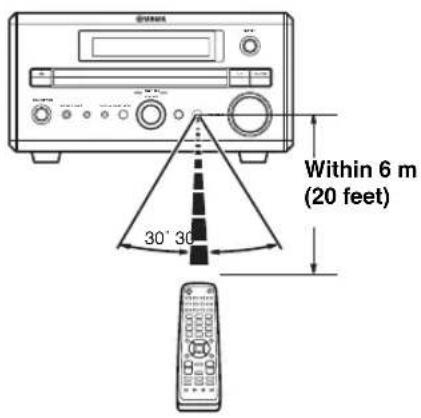
Use the remote control within 6 m (20 feet) of the DVD receiver and point it toward the remote control sensor (page 3).
Notes
- Be careful not to spill liquid on the remote control.
- Be careful not to drop the remote control.
- Do not leave the remote control in the following places:
- hot or humid places, such as near a heater or in a bathroom
- extremely cold places
- dusty places
Press STANDBY/ON once to turn on the DVD receiver.
Press STANDBY/ON again to set the DVD receiver to the standby mode.

You can set the DVD receiver to the eco standby mode by pressing DISPLAY on the front panel during standby mode. In this mode, all display in the DVD receiver turns off. To cancel the eco standby mode, press DISPLAY during eco mode.
SELECTING AN INPUT SOURCE
You can enjoy various sources with the DVD receiver. After connecting the TV, speakers, antennas, or other equipment, follow the procedure below to select an input source you want to play on the DVD receiver. For information on connection methods, refer to pages 8 to 12.
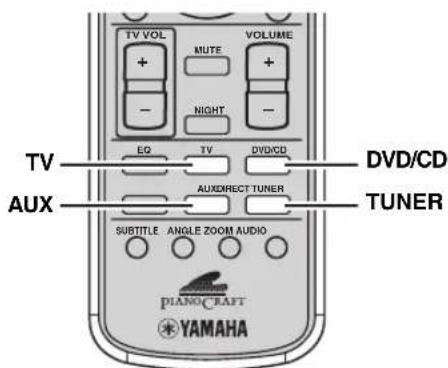
Perform one of the following operations
To switch to DVD/CD input:
Press DVD/CD.
To switch to external source input (external equipment connected to the DVD receiver):
Press AUX.
To switch to TV input:
Press TV.
U.K. and Europe models only
You can switch the input signals between signals input at the TV IN jacks and signals input at AV terminal (page 20).
To switch to tuner input (AM/FM radio):
Press TUNER.
Each time you press TUNER, the input source switches between AM and FM.
■To select an input source using INPUT on the front panel
Press INPUT repeatedly.
Each time you press INPUT, the input source changes as follows:
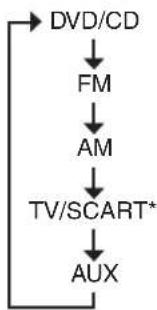
flowchart
graph TD
    A["DVD/CD"] --> B["FM"]
    B --> C["AM"]
    C --> D["TV/SCART*"]
    D --> E["AUX"]
* SCART is applicable only for U.K and Europe models.
ADJUSTING THE VOLUME LEVEL
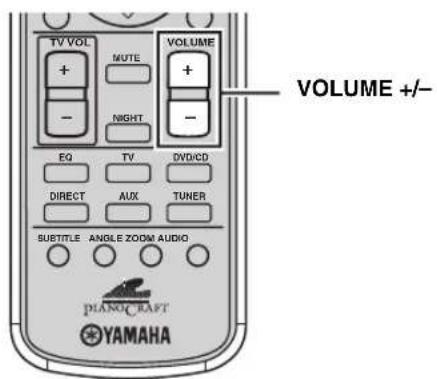
Press VOLUME + to increase the volume level and VOLUME - to decrease.
MUTING THE SOUND (MUTE)
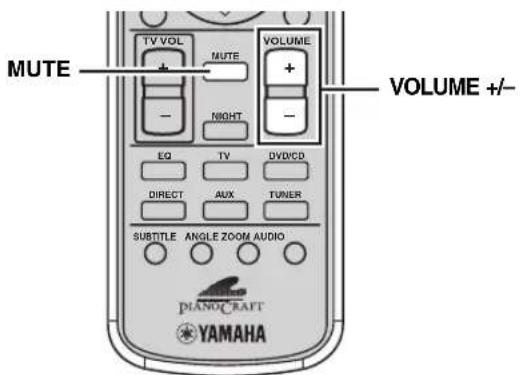
Press MUTE to mute the sound.
To restore audio output to the previous volume level, press MUTE again or press VOLUME +/-.
ADJUSTING THE CLOCK
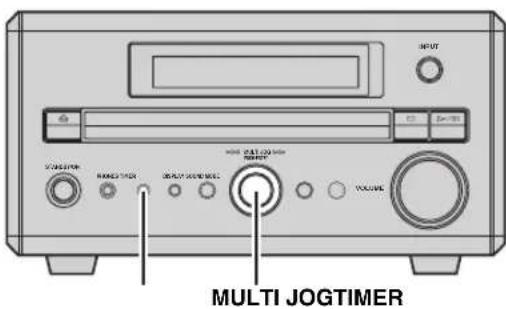
1 Press TIMER on the front panel to select "TIME" and then press MULTI JOG.
2 Rotate MULTI JOG to adjust the hour and then press MULTI JOG.
3 Rotate MULTI JOG to adjust the minute and then press MULTI JOG.
4 Press MULTI JOG again to set the time.
Note
You cannot set timer unless you adjust the clock.
SETTING THE TIMER
You can set the timer function so that the DVD receiver turns on at the specified time and begins to play the selected input source automatically.
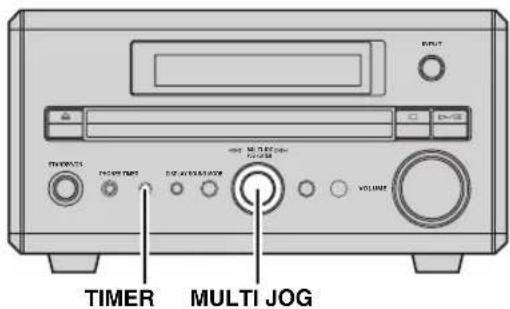
1 Press TIMER on the front panel to select "TIMER" and then press MULTI JOG.
2 Rotate MULTI JOG clockwise to select "TIMER ON" and then press MULTI JOG. The current timer setting is displayed.
3 Set the time that timer play begins using the MULTI JOG, and then press MULTI JOG.
4 Rotate MULTI JOG to select the input source to be played and then press MULTI JOG.
5 Rotate MULTI JOG to set the duration (30 to 90 min) and then press MULTI JOG. You can set the duration in 10 minutes steps.
■To cancel the timer
Select "TIMER OFF" in step 2.
SETTING THE SLEEP TIMER
If you set the sleep timer, the DVD receiver automatically turns to the Standby mode after the specified time.
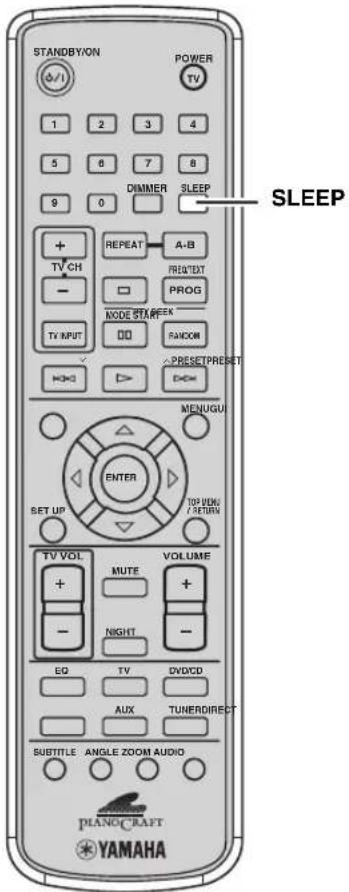
Press SLEEP repeatedly to set the duration for the sleep timer.
Each time you press SLEEP, the duration changes as follows:
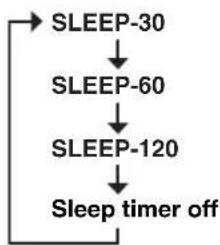
flowchart
graph TD
    A["SLEEP-30"] --> B["SLEEP-60"]
    B --> C["SLEEP-120"]
    C --> D["Sleep timer off"]
#
- The DVD receiver automatically turns to the dimmer mode.
Notes
- The sleep timer only works for the DVD receiver. It does not turn off other equipment connected to the DVD receiver.
- The sleep timer is canceled if you turn the DVD receiver to the Standby mode.
- The DVD receiver stores the mode or playback settings in its memory when it automatically turns to the Standby mode. You can use those settings when you turn on the DVD receiver next time.
■To set the sleep timer using MULTI JOG
Press TIMER on the front panel repeatedly until "SLEEP" appears in the DVD receiver display.
Rotate MULTI JOG to set the duration (5 to 240 min). You can set the duration in 5 minutes steps (5 to 60 min), 10 minutes steps (60 to 120 min), or 30 minutes steps (120 to 240 min).
■To cancel the sleep timer
Press SLEEP repeatedly until "SLEEP" disappears from the DVD receiver display.
You can also cancel the sleep timer using MULTI JOG. Press TIMER on the front panel repeatedly until "SLEEP" appears in the DVD receiver display, and then rotate MULTI JOG to select "SLEEP-00".
CHANGING THE BRIGHTNESS OF THE DISPLAY
You can change the brightness of the DVD receiver display.
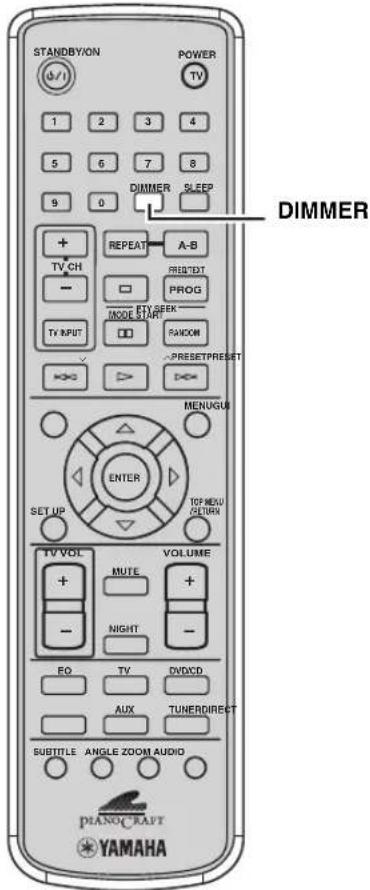
Press DIMMER.
Each time you press DIMMER, the brightness of the display switches between Dimmer on and Dimmer off.
■To cancel the dimmer mode
Press DIMMER again.
CHANGING DVD SETTING ON THE TV (OSD MENU)
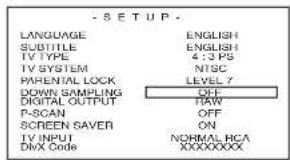
You can change various settings for DVD playback using the OSD (on-screen display) menu displayed on the TV screen connected to the DVD receiver. For details on the available menu items, refer to “OSD guide” (page 20).
Operating the OSD menu
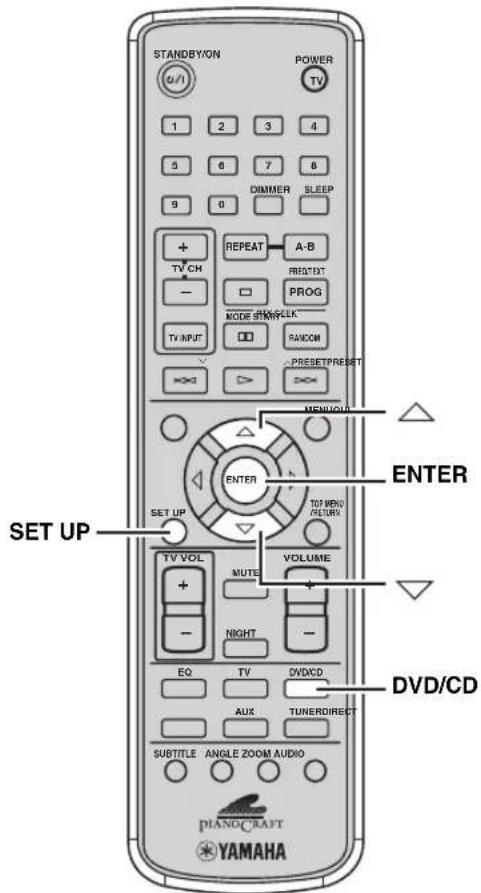
1 Press DVD/CD and then press SET UP to display the OSD menu on the TV screen.
2 Press or to select a menu item, then press ENTER repeatedly to select the setting for the item.
3 Press SET UP to exit the OSD menu.
OSD guide
| Menu Function | |
| LANGUAGE | Sets the language for the OSD menu and messages. Select a setting from English, German, French, Spanish, Italian, and Simplified Chinese. Simplified Chinese is available only for General model. This setting also changes the language for audio. If the selected language is not available on the DVD, one of the actual recorded language is automatically selected. |
| SUBTITLE | Sets the language for subtitle. Select a setting from off, English, German, French, Spanish, Italian, etc. If the selected language is not available on the DVD, one of the actual recorded language is automatically selected. |
| TV TYPE | Sets the screen aspect of your TV. Select a setting from “4:3 PS” (4:3 Pan&Scan), “4:3 LB” (4:3 Letter Box) and “16:9”. |
| TV SYSTEM | Sets the video signal system of your TV to “PAL”, “NTSC” or “AUTO”.When using a TV compatible with both NTSC and PAL, set this to “AUTO”.You can change the video signal system by pressing GUI when the OSD menu is displayed.NotesIf you play a PAL-formatted disc with the “NTSC” setting or an NTSC-formatted disc with the “PAL” setting, the video quality may deteriorate.Depending on the video format, the “AUTO” setting may not work properly. In this case, try the “NTSC” or “PAL” setting. |
| PARENTAL LOCK | Sets the restriction level for the DVD playback.Some DVD discs contain a restriction level which enables parents to remove scenes or prevent playback of discs by children. You can change a password to prevent children from changing a level.Use the number buttons to change the “PARENTAL LOCK” settings.The default password is set to “1234”.UNLOCK: “PARENTAL LOCK” is disabled.LEVEL 1 to 7: The lower the level, the stricter the restrictions.ADULT: Select this when you want to play all DVDs.Enter a new password in both the “NEW PASSWORD” field and the “CONFIRM PASSWORD” field. |
| DOWN SAMPLING | Sets the LPCM 48 kHz down sampling to “OFF” or “ON”.OFF: The audio signal output from the DIGITAL OPTICAL OUT jack is not down sampled.ON: The audio signal output from the DIGITAL OPTICAL OUT jack is down sampled to LPCM 48 kHz. |
| DIGITAL OUTPUT | Sets the output signal of the DIGITAL OPTICAL OUT jack to “RAW” or “PCM”.RAW: Outputs all types of digital signal that the DVD receiver can produce.PCM: Converts the signal (except for DTS sources) to PCM before outputting it.NoteSignals are not output from the speakers or AUX OUT jacks during playback of DTS sources. |
| P-SCAN | Sets the output signal of the VIDEO OUT COMPONENT jacks.OFF: Interlace signals are output from the VIDEO OUT COMPONENT jacks.ON: Progressive signals are output from the VIDEO OUT COMPONENT jacks.You can turn on or off the Progressive Scan mode by pressing ZOOM when the OSD menu is displayed. |
| SCREEN SAVER | Sets the screen saver function (page 22).ON: The screen saver works.OFF: The screen saver does not work. |
| TV INPUT | (U.K and Europe models only)Switches the input signals when the input source is set to TV between signals input at the TV IN jacks and signals input at AV terminal.NORMAL RCA: Signals input at the TV IN jacks are reproduced.SCART: Signals input at the AV terminal are reproduced. |
| DivX Code | The DivX®VOD (Video On Demand) registration code appears.Use this registration code to purchase or rent the videos from DivX®VOD service at www.divx.com/vod. Follow the instructions and download the video onto a CD-R/RW for playback on this receiver. Note that all the videos downloaded from DivX®VOD can only be played back on this receiver. For more information, go to www.divx.com/vod. |
SUPPORTED DISC TYPES
You can enjoy movie or music discs with the DVD receiver. Since some DVD receiver disc operations are limited to specific disc types, the supported disc types are indicated using the icons shown below. Each icon means that the operation is limited to the corresponding disc type. For information on supported disc standards and disc usage notes, refer to “Disc Information” (page 48) and “Handling a disc” (page 49). Operations with no icon indicated are available for all disc types.
| DVD video Video CD Music CD | ||
| DVD-V | VCD | CD |
About MP3, WMA, DivX® and JPEG discs
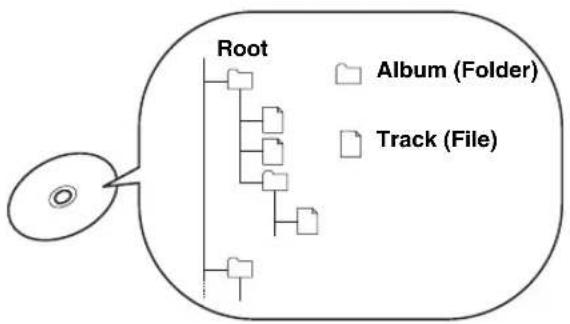
You can play MP3, WMA and DivX® files recorded on a CD-R or CD-RW with similar uses as a music CD or a DVD. The DVD receiver regards folders in the disc as albums, and files as tracks (as shown below). Also you can play JPEG picture files recorded on a CD-R or CD-RW. For details about how to play these files, refer to "ENJOYING MULTIMEDIA FILES ON DISCS" (page 32).
flowchart
graph TD
    A["Root"] --> B["File Folder"]
    A --> C["File File"]
    A --> D["File Box"]
    A --> E["File Box"]
    A --> F["File Box"]
    A --> G["File Box"]
    A --> H["File Box"]
    style A fill:#f9f,stroke:#333
    style B fill:#ccf,stroke:#333
    style C fill:#ccf,stroke:#333
    style D fill:#ccf,stroke:#333
    style E fill:#ccf,stroke:#333
    style F fill:#ccf,stroke:#333
    style G fill:#ccf,stroke:#333
    style H fill:#ccf,stroke:#333
What is MP3?
"MP3 (MPEG-1 Audio Layer-3)" is a standard technology and format for compressing an audio sequence into a small-sized file. However it preserves the original level of sound quality when it is played.
Notes
- Depending on recording conditions such as recording software settings, the DVD receiver may not be able to play the disc or play tracks in the order they were recorded.
- The DVD receiver is compatible with a bit rate range of 32, 64, 96, 128, 192, 256 or 320 kbps and variable bit encoded MP3 files.
- The DVD receiver is compatible with a sampling frequency of 16, 32, 44.1, or 48 kHz.
What is WMA?
"WMA (Windows Media Audio)" is a Microsoft file format for encoding digital audio files similar to MP3 though can compress files at a higher rate than MP3.
What is JPEG?
“JPEG” is a compression format for still images. With only a slight drop in image quality (part of the data is removed), still image data can be compressed to approximately 1/10 to 1/100 of its original size.
Note
This unit does not support the progressive JPEG format.
What is DivX®?
"DivX®" is a video compression technology developed by DivX® Networks, Inc. It compresses digital video data to sizes small enough to be transported over the Internet without reducing the original video quality. You need DivX® codec software to play back DivX® movies or convert data to the DivX® format.
BASIC PLAYBACK OPERATIONS
Follow the procedures below to carry out basic disc playback operations. The DVD receiver also provides various useful functions for disc playback. For details, refer to “USEFUL PLAYBACK OPERATIONS” (page 23).
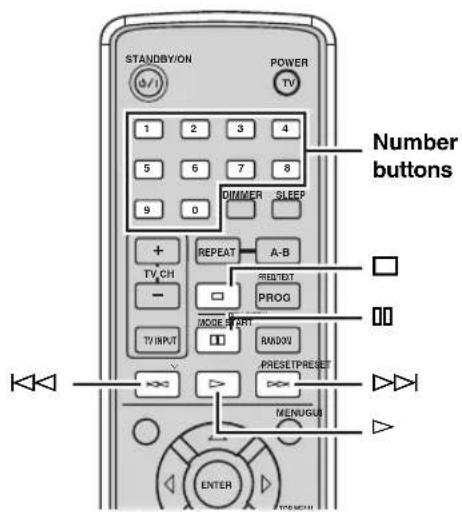
■To start playback
Press ▷.

- If you do not perform any operations for 180 minutes after a menu screen appears on your TV, the DVD receiver turns into the screen saver mode. To cancel the screen saver mode, press any button. If you do not perform any operations for 30 minutes after the DVD receiver turns into the screen saver mode, the DVD receiver turns into the standby mode.
- C0 can play back the first 10 seconds of each track by pressing and holding ▷. Press ▷ again to play back the current track.
■To stop playback
Press □.

Whenever you stop playback, the DVD receiver automatically memorizes the stopping position, and "RESUME" appears in the front panel display. If you press ▷, playback resumes from where it left off.
■To pause playback
Press 00.
To return to normal playback, press ▷.

If you do not perform any operations for 15 minutes after you stop or pause the disc playback, the DVD receiver turns into the screen saver mode. To cancel the screen saver mode, press any button. If you do not perform any operations for 30 minutes after the DVD receiver turns into the screen saver mode, the DVD receiver turns into the standby mode.
■To fast reverse or fast forward

To fast reverse, press and hold ◀◀. To fast forward, press and hold ▶▶.
Once fast reverse or fast forward starts, you can change the speed (2X, 4X, 8X, or 20X) by pressing ◀◀ or ▶▶ repeatedly. Press ▷ to resume the normal playback.
Note
The speakers do not produce any sound if you fast forward/reverse while playing a Dolby Digital disc.
■To skip chapters (tracks)
To skip to the start of the current chapter (track), press ◀◀◀.
To skip to the next chapter (track), press ▷▶. To skip to the previous chapter (track), quickly press ◀◀ twice.
Note
The Skip feature may not work properly when using Playback Control (page 27) to play a video CD.
■To specify a track for playback
VCD CD
Use the number buttons to enter the track number you want to play and then press ▷.
To enter 2-digit number, press a number button for the second digit place, then press a number button for the first digit place.
USEFUL PLAYBACK OPERATIONS
You can enjoy movie or music discs with various useful features on the DVD receiver. For information on basic disc playback operations, refer to “BASIC PLAYBACK OPERATIONS” (page 22).
Customizing playback order (Program Play)
You can customize the playback order. You can also display the playback order or clear all Program Play contents after customizing the playback order.
Note
To customize playback order, turn on the TV connected to the DVD receiver.
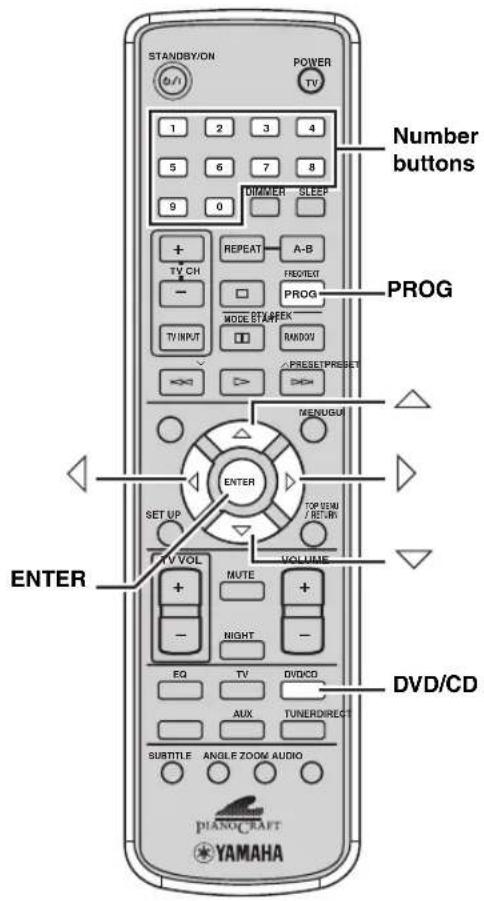
1 Press DVD/CD, then press PROG while the disc playback is stopped.
The "Program Input" screen appears on the TV screen.
2 Press number buttons to enter a track or title/chapter pair to be programmed.
3 △ / ▽ / ◀ / ◇ to move the cursor to the next field.
4 Repeat steps 2 and 3 until you store all desired tracks.
You can store up to 12 tracks or title/chapter pairs.
5 Press △ / ▽ / ◀ / ◇ to select "Play Program" and then press ENTER.
The "PROG" indicator lights up in the DVD receiver display, the OSD menu disappears, and Program Play starts automatically. If playback does not start automatically, press ▷.
Note
The program play function is not available when the video CD Playback control feature is turned on.
[Symbol]
You can play the programmed tracks repeatedly (page 25).
Playing back randomly (Random Play)
You can shuffle tracks or chapters.
Notes
- Random Play may not work depending on DVD disc types.
- If you press ▶ during random playback, the next track or chapter will be randomly selected and played. If you press ▶, the currently played track or chapter will be played from the beginning. A track or chapter cannot be replayed during random playback.
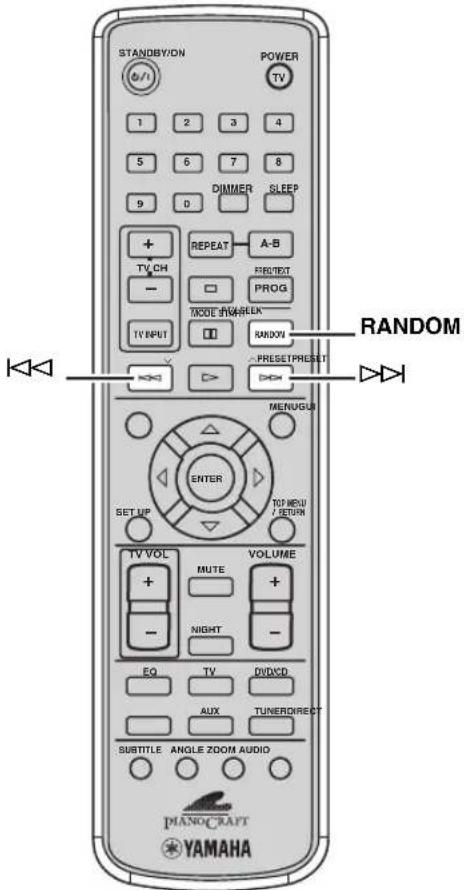
Press RANDOM.
The "RANDOM" indicator lights up in the DVD receiver display.
■To cancel Random Play
Press RANDOM again.
Playing back repeatedly (Repeat Play)
You can repeat single chapter (track), single title, or entire disc. Also, you can set two points (start and end points) to repeat the specified section of a title (track) with A-B Repeat (page 26).
Notes
- Repeat Play may not work depending on DVD disc types.
- Repeat Play does not work while playing back a video CD using the Playback control feature (page 27).
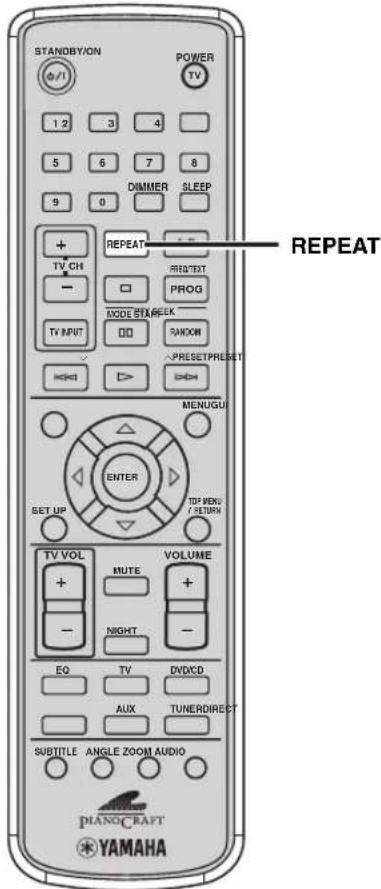
1 Play back the disc, title, chapter or track you want to repeat.
For details, refer to "BASIC PLAYBACK OPERATIONS" (page 22).
2 Press REPEAT repeatedly.
The REPEAT indicator (lights up in the DVD receiver display. Each time you press REPEAT, the indicator in the DVD receiver display changes as follows:
DVD-V
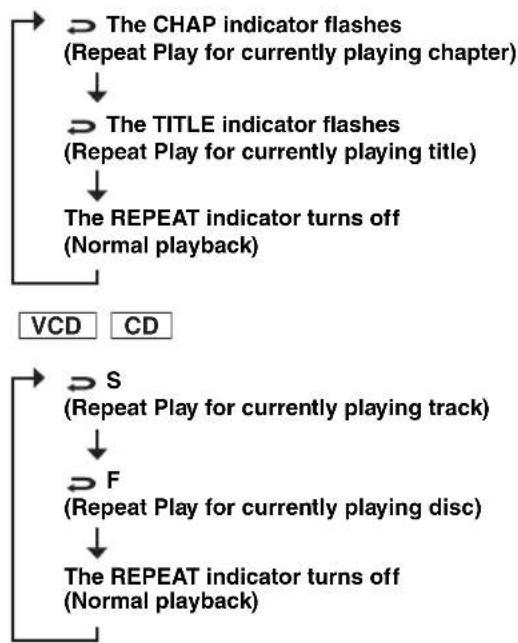
flowchart
graph TD
    A["The CHAP indicator flashes\n(Repeat Play for currently playing chapter)"] --> B["The TITLE indicator flashes\n(Repeat Play for currently playing title)"]
    B --> C["The REPEAT indicator turns off\n(Normal playback)"]
    D["VCD"] --> E["S\n(Repeat Play for currently playing track)"]
    E --> F["F\n(Repeat Play for currently playing disc)"]
    F --> G["The REPEAT indicator turns off\n(Normal playback)"]
■To cancel Repeat Play
Press REPEAT repeatedly until the REPEAT indicator turns off.
■To repeat between two points (A-B Repeat)
You can repeat the specified section of a title (track) by setting two points (start and end points).
Notes
• A-B Repeat may not work depending on DVD disc types.
- You can use A-B Repeat only within one title (track).
1 Play back the title or track that includes the section you want to repeat.
For details, refer to "BASIC PLAYBACK OPERATIONS" (page 22).
2 At the position where you want to set as the start point of the repeat section, press A-B.
The “A-” indicator lights up in the DVD receiver display.
3 At the position where you want to set as the end point of the repeat section, press A-B again.
A-B Repeat starts.
The “A-B” indicator lights up in the DVD receiver display.
■To cancel A-B Repeat
Press A-B again.
The “A-B” indicator turns off, and A-B Repeat is canceled.
Operating disc menus (DVD menu/Video CD Playback Control)
Many DVDs and video CDs include original navigational menus called “DVD menus” and “video CD Playback Control menus”. These menus provide a convenient way to operate the disc. Follow the procedure below to use a DVD menu or video CD Playback Control with the DVD receiver.
Note
Menu contents or operation method of each disc may vary. For information about the disc you are using, refer to the operating instructions in the disc's menu or on its jacket.
■To operate the DVD menu DVD-V
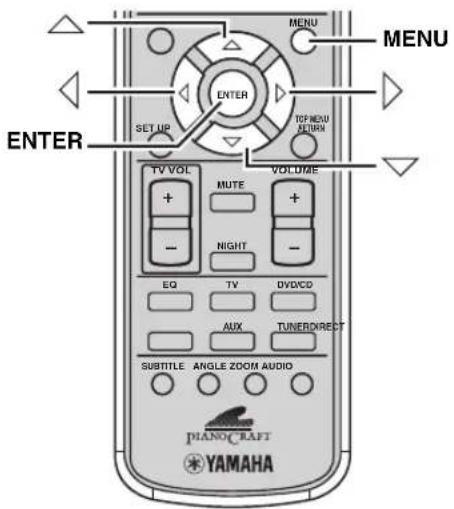
1 Press MENU.
The DVD menu appears on the TV screen.

Depending on the disc, the DVD menu may automatically appear after the disc is loaded.
2 Press △ / ▽ / ◀ / ◇ to select a menu item, then press ENTER.
■To operate the video CD Playback Control menu VCD
If you play back a video CD that includes the Playback Control feature, the menu automatically appears on the TV screen. To operate the Playback Control feature with the remote control, use the following buttons.
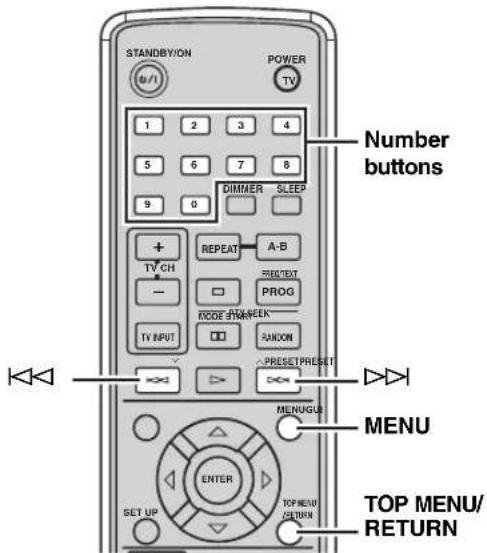
MENU: Turns on or off the Playback Control feature. Number buttons: Selects an item.
▷▷: Moves to the next screen.
or TOP MENU/RETURN: Returns to the previous screen.
SELECTING AUDIO, SUBTITLE AND ANGLE
DVD-V
You can select audio and subtitle languages for DVD playback. You can also select a viewing angle for DVD playback.
Note
This selection is available only with multi-language or multi-angle compatible discs. For information about the disc you are using, refer to the operating instructions in the disc's menu or on its jacket.
Selecting Audio and Subtitle Languages
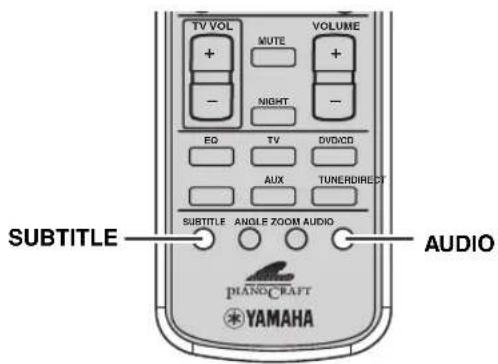
While playing a disc or pausing, press AUDIO or SUBTITLE repeatedly to select the language you want to use for audio or subtitle.
The audio language or subtitle language appears on the TV screen.
■To turn off the subtitle
Select "Off".
Selecting a Viewing Angle
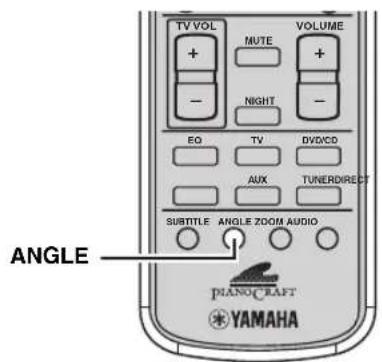
While playing a disc, press ANGLE repeatedly to select the viewing angle.
ZOOMING IMAGES
DVD-V
You can zoom in a specified part of picture during DVD or video CD playback.
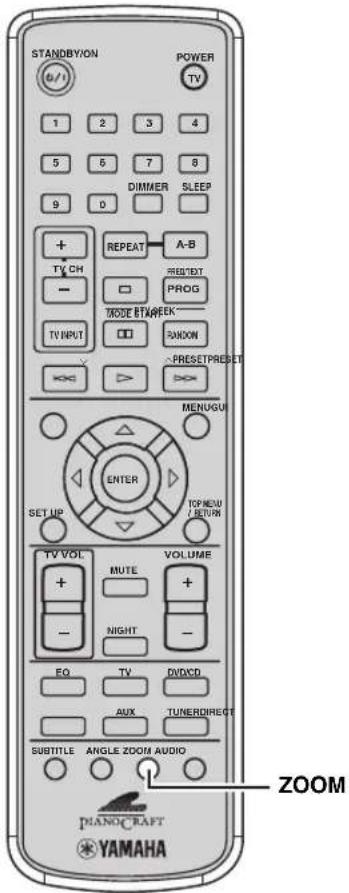
1 While playing a disc or pausing, press ZOOM.
The current zoom setting appears on the TV screen.
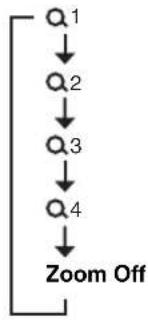
2 Press ZOOM repeatedly to select the zooming scale.
Each time you press ZOOM, the zooming changes as follows:
flowchart
graph TD
    A["Q1"] --> B["Q2"]
    B --> C["Q3"]
    C --> D["Q4"]
    D --> E["Zoom Off"]
■To return to the original scale
Select "Zoom Off".

You can also zoom VCD, JPEG and DivX® images.
USING GUI
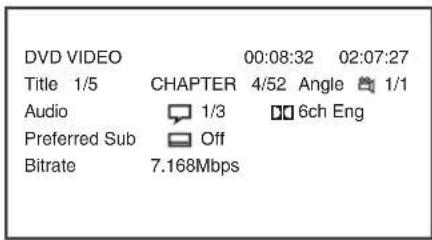
You can view various information of the currently played disc on the TV screen and specify an elapsed time where you want to start playback.
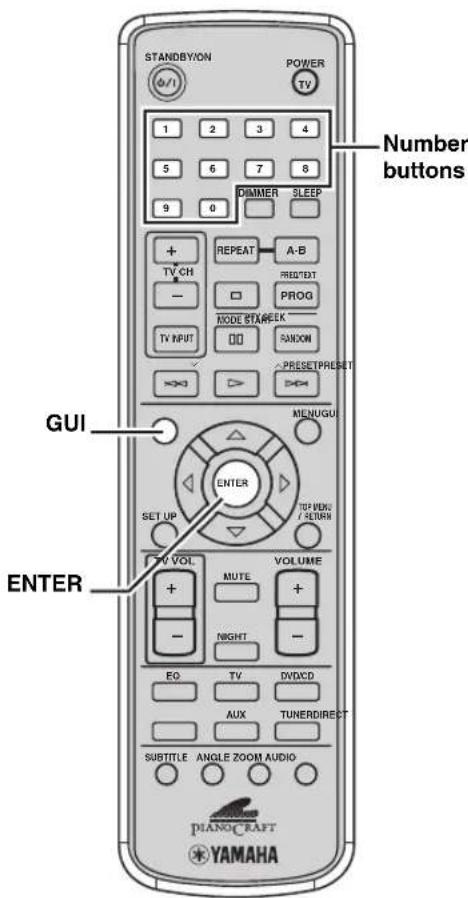
1 While playing a disc or pausing, press GUI.
The disc type, elapsed time, remaining time, title/chapter/track information, angle information, audio information, subtitle information and bitrate are displayed.
2 Press GUI again.
The elapsed time input screen appears.
3 Use the number buttons to enter the elapsed time where you want to start playback and then press ENTER.
If you press GUI without pressing the number buttons, the elapsed time input screen disappears.
ENJOYING HIGH-QUALITY VIDEO (NTSC/PROGRESSIVE SCAN) DVD-V
Progressive Scan is video that represent a frame with one pass of sequential scan lines whereas interlace output video, which is usually adopted for most TVs, represents a frame with two passes. Progressive Scan provides better video quality by reducing picture noises. To enjoy DVDs with Progressive Scan, you need to connect the DVD receiver to a TV that has component video input jacks compatible with Progressive Scan. For details on connections, refer to “Other connection methods” (page 9).
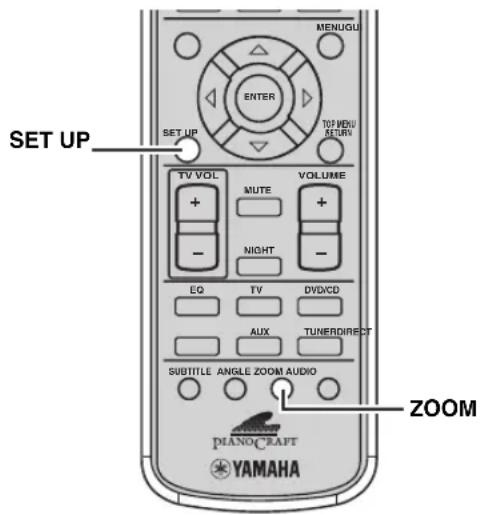
■To turn on the Progressive Scan mode
While disc playback is stopped, press SET UP to display the OSD menu and then press ZOOM. The Progressive Scan mode is activated and the “PROGRESSIVE” indicator lights up in the DVD receiver display.
■To turn off the Progressive Scan mode
While disc playback is stopped, press SET UP to display the OSD menu and then press ZOOM.

- When the Progressive Scan mode is off, the DVD receiver provides video with interlace output mode.
- During playback, you cannot switch between the Progressive Scan mode and the interlace output mode.
Notes
- If you play video with a 4:3 aspect ratio on a 16:9 wide television screen, Progressive Scan may fill the screen top to bottom. In this case, change the screen aspect setting of your TV with the OSD menu (page 19). If you cannot adjust the ratio, press SET UP to display the OSD menu and then press ZOOM to turn off the Progressive Scan mode (use the interlace output mode).
- CONSUMERS SHOULD NOTE THAT NOT ALL HIGH DEFINITION TELEVISION SETS ARE FULLY COMPATIBLE WITH THIS PRODUCT AND MAY CAUSE ARTIFACTS TO BE DISPLAYED IN THE PICTURE. IN CASE OF 525 PROGRESSIVE SCAN PICTURE PROBLEMS, IT IS RECOMMENDED THAT YOU SWITCH THE CONNECTION TO THE “STANDARD DEFINITION” OUTPUT. IF THERE ARE QUESTIONS REGARDING YOUR VIDEO MONITOR COMPATIBILITY WITH THIS UNIT, PLEASE CONTACT OUR CUSTOMER SERVICE CENTER.
- This unit is compatible with the complete line of projectors and plasma displays made by YAMAHA.
For U.K. and Europe models only
When the RGB/YUV selector switch (page 9) is set to "RGB", Progressive Scan is not available.
ENJOYING MULTIMEDIA FILES ON DISCS
This DVD receiver can play MP3, WMA, DivX ^® and JPEG files on a personally recorded CD-R/RW disc or commercial CD.
1 Load a disc in the disc tray.
The disc menu appears on the TV screen.
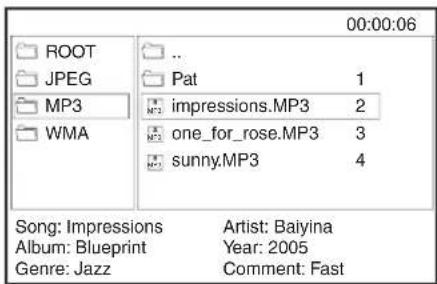
The disc reading time may exceed 30 seconds due to the complexity of the directory/file configuration.
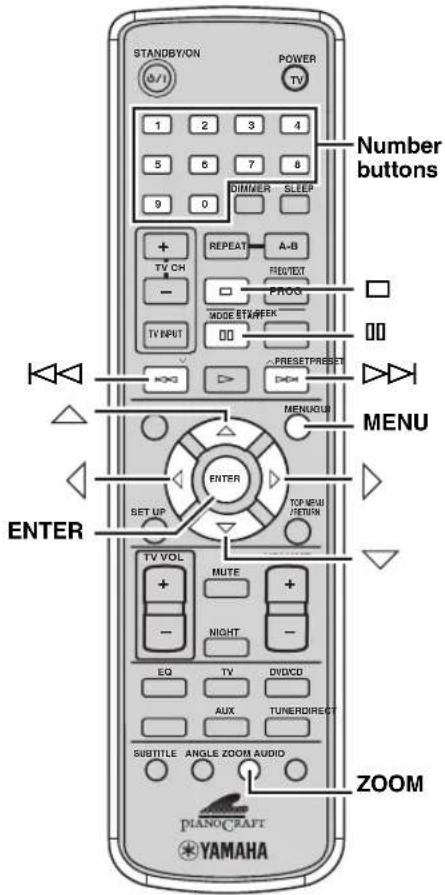
2 Press △ / ▽ to select a desired folder and press ENTER to open the folder.
To move to the upper folder, select the folder icon with two dots.
3 Press △ / ▽ to select a file and press ENTER to confirm.
Playback will start from the selected file to the end of the folder.
When you select a JPEG file, a slide show of the current folder automatically begins. Press ☐ to pause the slide show or press ☐ to display the list screen.
To select the previous/next file, press ◀◀◀ / ▷◀◀.

- You can select a file by pressing number buttons.
- Depending on the JPEG CD, you can display the thumbnail screen by pressing MENU. Press ◀◀◀ / ▶▶▶ to move to the
previous/next pages, and then press △ and ◀ ▶ ENTER to select a picture to be displayed in full screen.
- You can rotate the displayed image by pressing △ ◀ ◀ when a picture is displayed in full screen.
- You can zoom and pan the displayed image by pressing ZOOM and then △ / when the slide show is paused.
TUNING RADIO STATIONS
The DVD receiver provides several methods for tuning AM/FM radio stations, such as Auto Tuning, Manual Tuning and Preset Tuning. Follow the procedure below to tune your favorite radio stations.
About the display
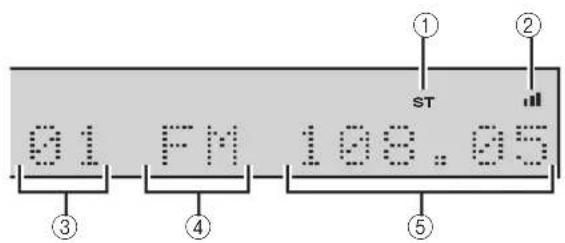
①ST indicator
Lights up when receiving a strong FM radio signal.
② indicator
Lights up when receiving a strong radio signal.
③Preset number
Displays the preset number (page 36).
④Band
Displays the band (AM or FM).
⑤Frequency
Displays the frequency.
Tuning radio stations automatically (Auto Tuning)
If the radio wave reception is strong in your area, Auto Tuning is a quick and useful way to tune radio stations.
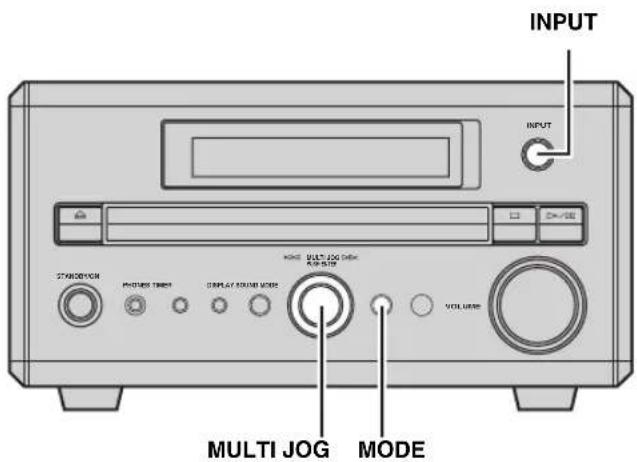
1 Press INPUT on the front panel repeatedly to select AM or FM.
Each time you press the button, the mode changes between "AM" and "FM".
2 Press MODE to select "TUNING MODE" and then rotate MULTI JOG clockwise quickly.
The DVD receiver automatically detects radio stations that have strong signals for your selection.

You can switch the tuning mode for FM radio stations. Press ☐ on the remote control to switch the tuning mode between stereo and mono.
■To switch the frequency step (General model only)
Because the interstation frequency spacing differs in different areas, you may need to switch the frequency step mode.
North, Central and South America: 100 kHz/10 kHz
Follow the procedures below to set the frequency steps. While the DVD receiver is set to the standby mode, press and hold both SOUND and INPUT on the front panel, then press and hold STANDBY/ON on the front panel for 4 seconds or longer.
The frequency step mode will be set to 100 kHz/10 kHz.
Tuning radio stations manually (Manual Tuning)
If the radio wave reception is weak in your area, tune radio stations manually.
1 Press INPUT on the front panel repeatedly to select "AM" or "FM".
2 Press MODE to select "TUNING MODE" and then rotate MULTI JOG to adjust the frequency.
Selecting preset radio stations (Preset Tuning)
If you preset your favorite radio stations with Auto Preset (page 36) or Manual Preset (page 36) on the DVD receiver, you can tune the radio stations simply by selecting the preset number.
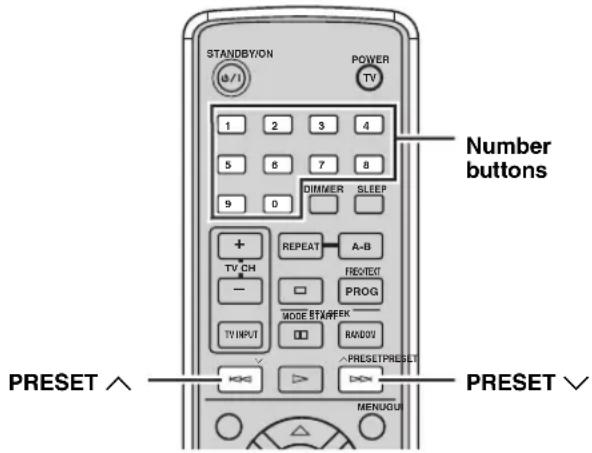
Use the number buttons or press PRESET ∧ / ∨ repeatedly to select the preset number of the radio station you want to listen to.

You can also select preset radio stations by rotating MULTI JOG on the front panel.
Receiving FM Radio Data System stations (U.K. and Europe models only)
The Radio Data System is a transmission system for FM stations used mainly in the U.K. and Europe. The Radio Data System transmissions include various types of information such as PS (Program Service), PTY (Program Type), RT (Radio Text), and CT (Clock Time). Follow the procedure below to receive FM stations by the Radio Data System transmissions on the DVD receiver.
■To switch frequency and Radio Data System modes
While receiving an FM Radio Data System station, press DISPLAY.
Each time you press the button, the mode changes as follows:
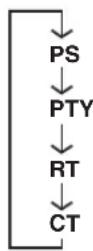
About information type
The Radio Data System includes the following types of information.
• PS (Program Service)
Displays the station name.
- PTY (Program Type)
Displays the program type (genre).
- RT (Radio Text)
Displays text information related to the Radio Data System broadcast. (Shows an under bar for a non-identifiable character.)
- CT (Clock Time)
Displays the current time. (Shows the message “CT WAIT” when time data cannot be received properly.)
Notes
- The available Radio Data System information types vary depending on the station.
- If the FM Radio Data System station's signal transmission is too weak, the DVD receiver may not be able to receive Radio Data System information completely. In particular, RT (Radio Text) information uses a lot of bandwidth, so it may not be available even when other modes are selectable.
- The Radio Data System information may not transmit under weak radio wave conditions. In this case, press on the remote control to let the DVD receiver's radio wave reception mode automatically change to the monaural mode to increase the signal quality.
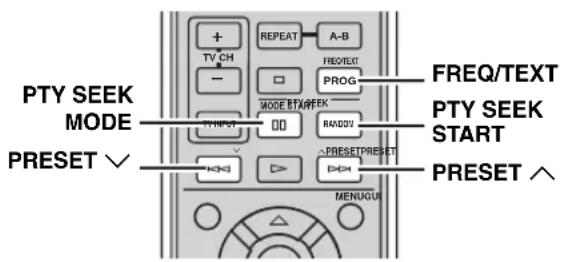
■To select stations by program type (genre)
You can tune FM Radio Data System stations by selecting a program type (genre). Once you select a program type, the DVD receiver automatically searches for FM Radio Data System stations currently broadcasting the corresponding programs.
1 Press FREQ/TEXT (PROG) repeatedly to select PTY.
Each time you press FREQ/TEXT, the display changes as follows:
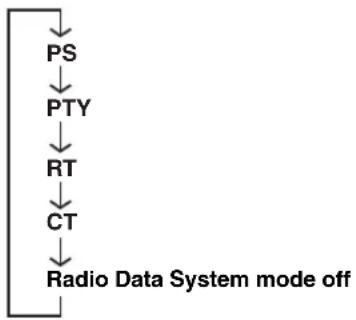
flowchart
graph TD
    A["PS"] --> B["PTY"]
    B --> C["RT"]
    C --> D["CT"]
    D --> E["Radio Data System mode off"]
2 Press PTY SEEK MODE.
The program type you selected last time appears in the DVD receiver display.
3 Press PRESET ∧ / ∨ to select the program type you want to listen to.
4 Press PTY SEEK START.
The DVD receiver starts searching for preset Radio Data System stations.
■To cancel PTY SEEK MODE
Press PTY SEEK START.
PRESETTING RADIO STATIONS
You can preset your favorite radio stations to tune the stations simply by selecting the preset number. The DVD receiver can store up to 20 AM stations and 30 FM stations in its memory.
Presetting radio stations automatically (Auto Preset)
Follow the procedure below to preset radio stations automatically.
Presetting radio stations manually (Manual Preset)
Follow the procedure below to preset radio stations manually.
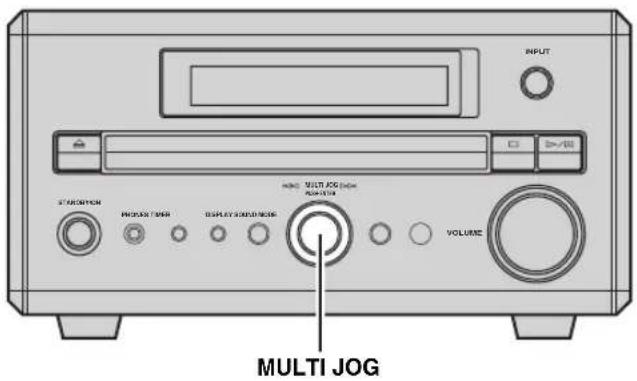
Press and hold MULTI JOG for 3 seconds or longer.
Auto preset starts at the lowest frequency toward the highest frequency.
The DVD receiver automatically applies a preset number to each detected stations.
Note
You can preset up to 20 AM stations and 30 FM stations with Auto Preset.

You can delete the currently selected preset station by pressing □. You can also delete all the preset stations by pressing and holding □ for 3 seconds or longer.
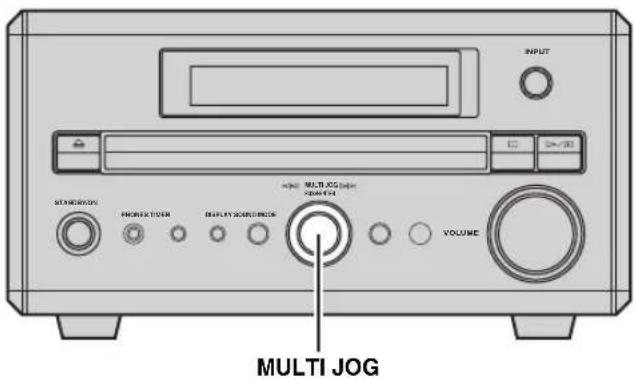
1 Tune the radio station you want to preset.
For details, refer to "TUNING RADIO STATIONS" (page 33).
2 Press MULTI JOG.
The MEMORY indicator blinks in the DVD receiver display for about 5 seconds.
3 Within 4 seconds, rotate MULTI JOG to select the preset number (1 to 20 for AM, 1 to 30 for FM) to where you want to store the currently selected station.
4 Press MULTI JOG.

You can delete the currently selected preset station by pressing □. You can also delete all the preset stations by pressing and holding □ for 3 seconds or longer.
Editing the name of preset radio stations
Follow the procedure below to edit the name of preset radio stations.
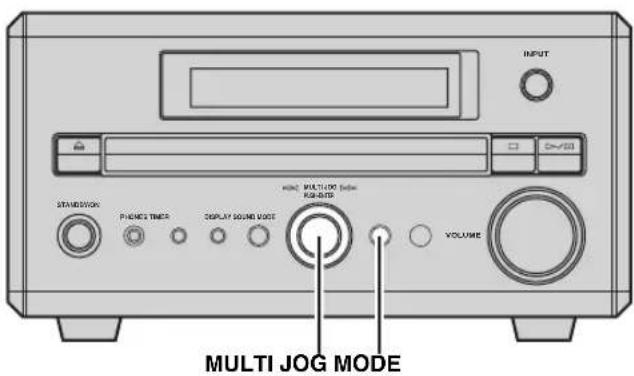
1 Select the preset radio station you want to edit the name.
For details, refer to “Selecting preset radio stations (Preset Tuning)” (page 34).
2 Press and hold MODE for more than 4 seconds.
The cursor flashes in the DVD receiver display.
3 Rotate MULTI JOG to select a character, then press MULTI JOG to enter the character.
The cursor moves to the next.
You can enter alphabets (A to Z) and numbers (0 to 9).
To enter a blank space, select “” between “Z” and “0”.
To delete the previously input character, press □. To delete all the characters, press □ for more than 3 seconds.
4 Repeat step 3 until you finish entering.
5 Press MODE.
The name of the preset station is stored.
PLAYING BACK EXTERNAL SOURCES
If you connect an external component to DVD receiver, you can enjoy sources played back on that component with DVD receiver. For details on connection methods, refer to “CONNECTING A TV” (page 9) and “CONNECTING EXTERNAL COMPONENTS” (page 11). Also, you can operate your TV using the remote control by setting a remote control code (page 42).
Note
Make sure you read the owner's manual for your external component before making any connections or operating it.
TV playback
If you connect the TV L/R jacks on the DVD receiver to the audio output L/R jacks on your TV using an audio pin cable (page 9), you can enjoy TV sounds with the DVD receiver.
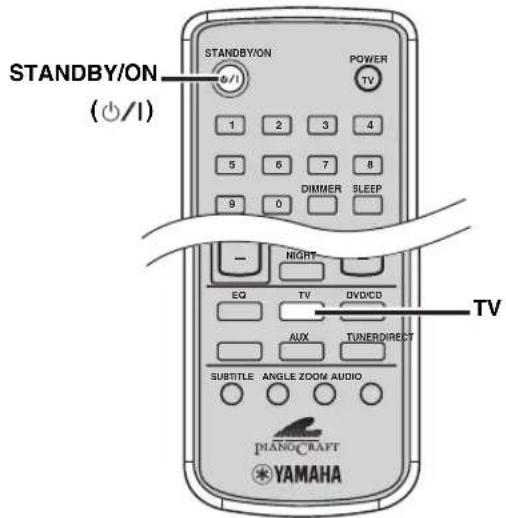
1 Turn on the TV, then press STANDBY/ON ( ) to turn on the DVD receiver.
2 Press TV.
Other component playback
If you connect the AUX IN L/R jacks on the DVD receiver to the audio output L/R jacks on your component using an audio cable (page 11), you can enjoy the sources played back on the component with the DVD receiver.
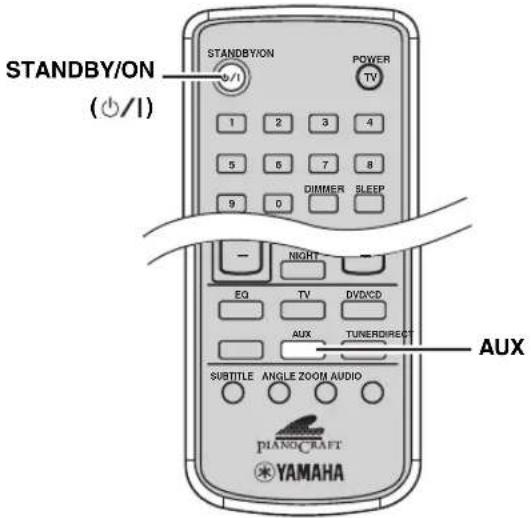
1 Turn on the component, then press STANDBY/ON ( ) to turn on the DVD receiver.
2 Press AUX.
3 Start playback on the connected component.
RECORDING SOURCES WITH EXTERNAL COMPONENTS
If you connect an external recorder to the DVD receiver, you can record sources played back on the DVD receiver. For details on the connection methods, refer to “CONNECTING EXTERNAL COMPONENTS” (page 11).
Note
Make sure you read the manuals for your equipment to operate them.
Recording audio sources with the DVD receiver
If you connect the DIGITAL OPTICAL OUT jack on the DVD receiver to the optical digital input jack on an external recorder such as a CD recorder or MD recorder using optical cables (page 11), you can record audio sources from the DVD receiver.
Notes
- Radio stations are not output from the DIGITAL OPTICAL OUT jack. To record AM/FM broadcasts, use a commercially available audio cable to connect the AUX OUT L/R jack on the DVD receiver to the analog input jack on your recorder.
- Be sure to perform a test recording before an actual recording.
- Turning off the external recorder connected to the DVD receiver may distort playback sounds or reduce the volume. In this case, turn on the external recorder.
- The volume level and audio quality have no effect on the recorded sound during recording. However, if the input source is set to DVD/CD, the output sound for recording may cut off if the headphones are connected/disconnected.
- Depending on the recorder, some DTS software audio signals may not record properly.
- Audio recordings that you make cannot be used for any purpose other than private enjoyment without the consent of the copyright holder.
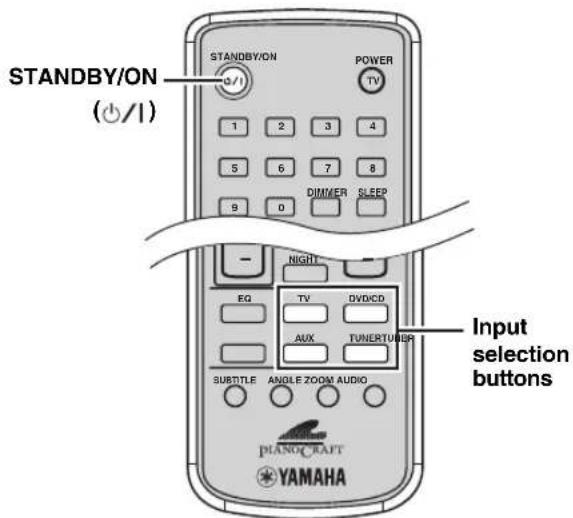
1 Turn on the recorder, then press STANDBY/ON ( ) to turn on the DVD receiver.
2 Use the Input selection buttons to select the input source.
3 Start recording on the recorder, then start playback.
ADJUSTING SOUNDS
You can adjust following sound settings: BASS, TREBLE, L/R BALANCE, EQ MODE, and the DIRECT mode.
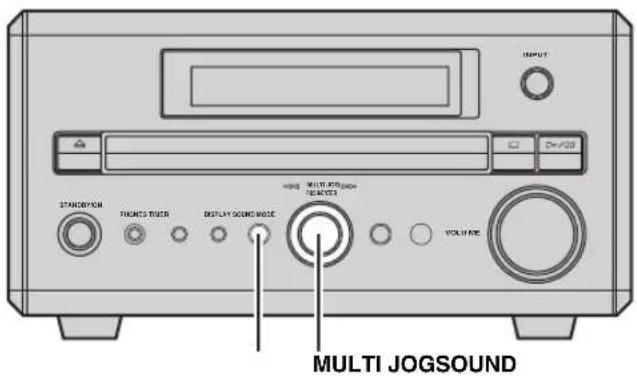
Note
These settings have no effect on the recorded sound during recording.
Adjusting Sound Settings
1 Press SOUND repeatedly to select the setting you want to adjust.
Each time you press SOUND, the display changes as follows:
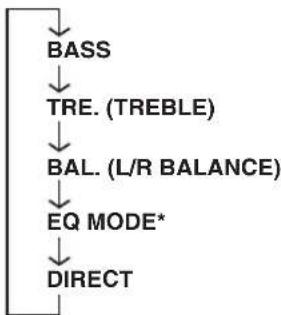
flowchart
graph TD
    A["BASS"] --> B["TRE. (TREBLE)"]
    B --> C["BAL. (L/R BALANCE)"]
    C --> D["EQ MODE*"]
    D --> E["DIRECT"]
* The currently selected EQ mode is displayed in the DVD receiver display.
2 Rotate MULTI JOG to adjust each setting.
BASS: Adjusts the BASS level.
$$ (- 1 0 \mathrm{to} + 1 0 \mathrm{dB}) $$
TREBLE: Adjusts the TREBLE level.
$$ (- 1 0 \text { to } + 1 0 \mathrm{dB}) $$
L/R BALANCE: Adjusts the speaker balance.
$$ (L + 6 \mathrm{dB} \text { to } R + 6 \mathrm{dB}) $$
EQ MODE: Selects the equalizer mode.
$$ \begin{array}{l} \text {(ROCK, POP, JAZZ, CLASSIC,} \ \text {FLAT)} \end{array} $$
DIRECT: Turns on/off the DIRECT mode.
When this is set to ON, a sound
comes directly without Digital
Signal Processor (DSP) processing.
3 Press MULTI JOG.

- You can select the EQ MODE by pressing EQ on the remote control repeatedly.
- You can turn on/off the DIRECT mode by pressing DIRECT on the remote control.
Night listening mode
Since night listening mode tones down large sound effect and clears speech or vocal sounds, you can enjoy sources even at low volume.
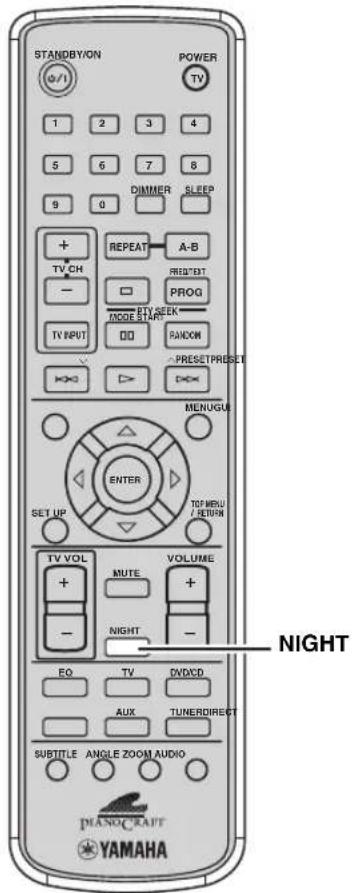
Press NIGHT.
Each time you press NIGHT, the night listening mode changes as follows:
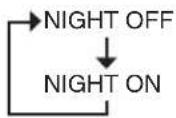
■To cancel the Night listening mode
Press NIGHT repeatedly to select "NIGHT OFF".
CONTROLLING EXTERNAL COMPONENTS
In addition to controlling this unit, you can operate external components with the remote control for the DVD receiver by selecting the appropriate remote control code (refer to “LIST OF REMOTE CONTROL CODES” at the end of this manual).
Note
Depending on the product, the remote control may not be able to operate the external component. In this case, use the remote control supplied with the product.
Setting remote control codes
You can set a remote control code for TV on the TV button on the remote control, and a remote control code for Cable TV or Digital Broadcast Satellite tuner on the AUX button on the remote control.
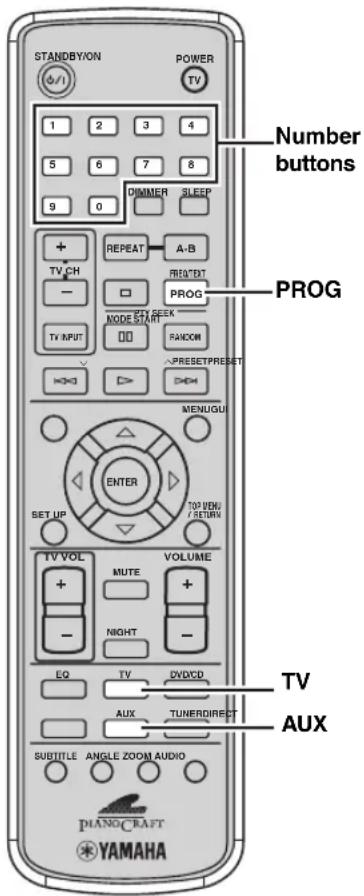
1 Press TV or AUX to set the input source of the DVD receiver to the component you want to operate with the remote control.
2 While holding down PROG, press TV or AUX, then while still holding down PROG, press the number buttons to enter the three-digit remote control code (refer to "LIST OF REMOTE CONTROL CODES" at the end of this manual) for the manufacturer of your component.
3 Refer to "Available operations" (page 43) and try one of the button operations for your component to check that the setting is working properly.
If the button operation does not work properly, the remote control code may be incorrect. In this case, perform step 1 again.
Notes
- Even if you set a remote control code, it will be cleared about two minutes after the remote control batteries run out. In this case, store remote control codes again after replacing the batteries. (Be careful not to press the remote control buttons while replacing the batteries. Doing so may clear the settings.)
- If the manufacturer of your component has more than one code, try each of them until you find the correct one.
Available operations
By carrying out step 1 in "Setting remote control codes" (page 42), you can operate the following functions on the external components using the remote control.
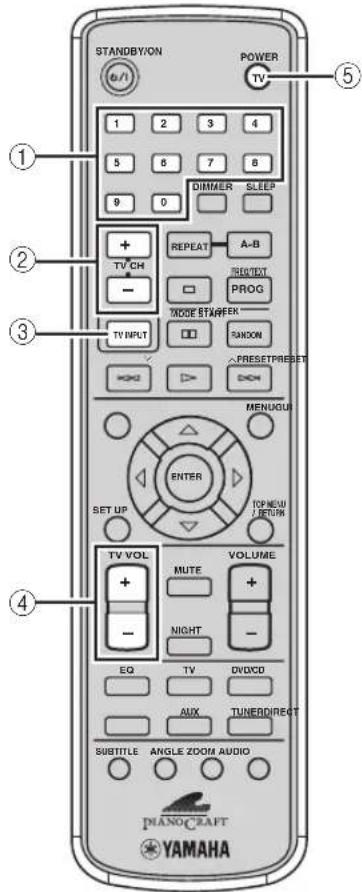
Functions for TV operation (TV)
①Number buttons
Enters a channel number.
②TV CH +/-
Switches the TV channels.
③TV INPUT
Switches the TV inputs.
④TV VOL +/-
Adjusts the TV volume level.
⑤POWER TV
Turn the TV on, or set it to the standby mode.
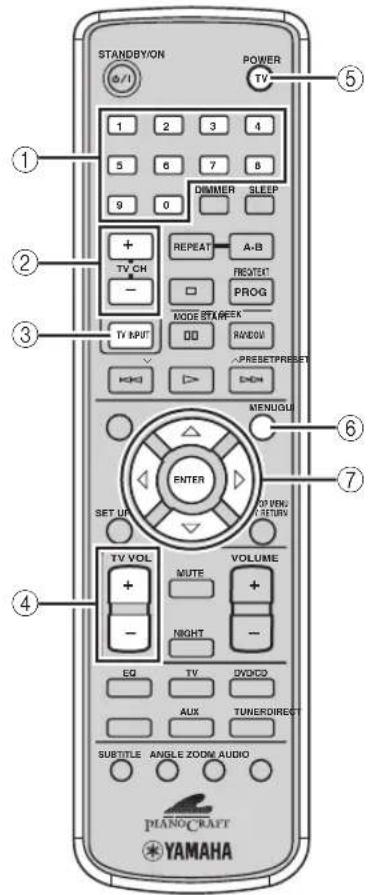
Functions for Cable TV and Digital Broadcast Satellite tuner operation (AUX)
①Number buttons
Enters a channel number.
②TV CH +/-
Switches the channels.
③TV INPUT
Switches the TV inputs.
④TV VOL +/-
Adjusts the TV volume level.
⑤ POWER TV
Turns the Cable TV or Digital Broadcast Satellite tuner on, or set it to the standby mode.
⑥MENU
Displays the OSD menu (Digital Broadcast Satellite tuner only).
⑦ / △ / , ENTER
Operates the OSD menu.
TROUBLESHOOTING
If there is any problem with your DVD receiver system, check the following items. If you cannot solve your problem with the following remedies or if your problem is not listed below, turn off and unplug the DVD receiver, then consult the nearest authorized YAMAHA dealer or service center.
General
| Problem Cause Solution | ||
| Power turns on but immediately shuts off. | The power cable may be connected improperly. | Make sure the power cable is plugged into the outlet firmly (page 12). |
| The speaker cable may be shorted. Make sure all speaker cables are connected properly (page 8). | ||
| The DVD receiver may receive a strong electrical shock such as from a lightening bolt or excessive static electricity. | Set the DVD receiver to the Standby mode, then disconnect the power cable. Wait for about 30 seconds, then connect the power cable and turn on the DVD receiver. | |
| The speakers make no sound. | The volume may be set to minimum level. | Adjust the volume level (page 15). |
| The Mute function may be enabled. | Cancel the Mute function (page 15). | |
| The input source may be incorrect. Select the correct input source (page 14). | ||
| The cables may be connected improperly. | Make sure all cables are connected properly (page 7). | |
| The disc loaded into the DVD receiver may be not compatible. | Make sure you use a disc supported by the DVD receiver (page 21). | |
| You are playing a DTS source. | Make a digital connection to a component that features a DTS decoder and select “RAW” for “DIGITAL OUTPUT” with OSD menu (pages 12 and 20). | |
| The TV shows no picture. The | cables may be connected improperly. | Make sure all cables are connected properly (page 9). |
| Sound suddenly turns off. | The sleep timer (page 17) might be set. | Turn on the DVD receiver and play the source again. |
| Sound is too low on one side. | The cables may be connected improperly. | Make sure all cables are connected properly (page 7). |
| The volume does not increase or sounds are distorted. | The power of the equipment connected to the DVD receiver's output jack may be turned off. | Turn on the power of the equipment connected to the DVD receiver's output jack. |
| A source being played back on the DVD receiver (DVD, CD, AM/FM broadcast, etc.) does not record when using an external component. | You may be trying to make a digital recording of an AM/FM broadcast. | Use the analog recording method (pages 11 and 39). |
| The DVD receiver does not operate properly. | The DVD receiver may receive a strong electrical shock, such as from a lightening bolt or excessive static electricity, or drop in power supply. | Set the DVD receiver to the Standby mode, then disconnect the power cable. Wait for about 30 seconds, then connect the power cable and turn on the DVD receiver. |
| A digital equipment or high-frequency equipment produces noises. | The DVD receiver may be placed close to the digital equipment or high-frequency equipment. | Place the DVD receiver further away from such equipment. |
| Sound played on the DVD receiver cannot be recorded with an external recorder. | You may be trying to make a digital recording with an analog source. | Use proper audio sources. |
| The clock setting has been cleared. | The power to the DVD receiver may be lost more than a week. | Make sure the power cable is plugged into outlet firmly, then set the clock again (page 16). |
Remote control
| Problem Cause Solution | ||
| The remote control does not work for operating the DVD receiver. | The remote control may be operated outside the remote control operation range. | For information on the remote control operation range, refer to “USING THE REMOTE CONTROL” (page 13). |
| The remote control sensor on the DVD receiver may be exposed to direct sunlight or lighting (inverted fluorescent lamps). | Change the lighting or DVD receiver's orientation. | |
| The remote control mode selection may be improper. | Select the mode that suits your purpose (page 5). | |
| The batteries may be worn out. Replace the batteries with new ones. (page 13). | ||
| The remote control does not work for operating TV. | The remote control code may be incorrect. | Set the correct remote control code (page 42). Depending on the model and year of the product, the remote control may not be able to operate it partly or wholly. In this case, use the remote control supplied for the product. |
Disc playback
| Problem Cause Solution | ||
| Some button operations do not work. | Some discs do not support certain DVD receiver functions. | |
| Playback does not start immediately when pressing ▷. | The disc may not be set in the disc tray properly. | Set the disc in the disc tray properly. |
| The disc may be dirty. Wipe the disc clean. | ||
| The disc loaded into the DVD receiver may be not compatible. | Make sure you use a disc supported by the DVD receiver (page 21). | |
| When moved the DVD receiver from a cold place to warm one, condensation may be form on the disc reading lens. | Wait for one to two hours, then try again. | |
| An audio or subtitle language does not switch. | The disc may not support the multi-language feature. | Make sure you use a disc that supports the multi-language feature. |
| No subtitles appear. | The subtitle may be set to “Off”. | Select a subtitle language you want to display (page 28). |
| The disc may not contain subtitle data. | Make sure you use a disc with subtitle data. | |
| When using the A-B Repeat function, the subtitle may not appear at the parts other than the selected section. | Cancel the A-B Repeat function (page 26). | |
| A viewing angle does not switch. | The disc may not support the multi-angle feature. | Make sure you use a disc that supports the multi-angle feature. |
| DVD videos cannot be copied with the VCR. | You may be trying to copy a copy-protected DVD. | Most commercially available DVDs include copy protect features. You cannot make a copy of these DVDs. |
| Picture looks poor. | In some cases, picture may look poor while fast forwarding or reversing, but this is not a defect. | |
| The TV (monitor) does not show the picture properly. | The picture settings may be improper. | Adjust the picture settings with the OSD menu (page 19). |
| The Progressive Scan mode may be used with a TV that does not support it. | Turn off the Progressive Scan mode (page 31). | |
| The screen size of the TV (monitor) looks strange. | The picture settings may be improper. | Adjust the picture settings with the OSD menu (page 19). |
| When the Progressive Scan mode is activated, image with a 4:3 aspect ratio are played on a 16:9 wide television screen. | Change “TV TYPE” with the OSD menu (page 19).If you cannot adjust the ratio, turn off the Progressive Scan mode and use the interlace output mode (page 31). | |
| The TV shows overlapped picture partly. | The disc content does not match the Progressive Scan mode due to the editing method or other conditions. | Turn off the Progressive Scan mode (page 31). |
| The disc is ejected without an operation. | The disc loaded into the DVD receiver may be not compatible. | Make sure you use a disc supported by the DVD receiver (page 21). |
| The message “No Disc” appears in the DVD receiver display even though a disc is inserted. | The disc may not be set in the disc tray. | Set the disc in the disc tray properly. |
Radio reception
■FM/AM
| Problem Cause Solution | ||
| The Preset Tuning function (page 34) does not work. | The preset (memory) may have been erased. | Preset radio stations again (page 36). |
| The preset station settings have been cleared. | The power to the DVD receiver may be lost more than a week. | Make sure the power cable is plugged into outlet firmly, then preset the stations again (page 36). |
FM
| Problem Cause Solution | ||
| Too much noise is generated during stereo broadcast. | The FM antenna may be connected improperly. | Make sure the FM antenna is connected properly (page 10). |
| The radio station you selected may be far away from your area or radio wave reception is weak in your area. | Try Manual Tuning to increase the signal quality (page 33) or use a multi-channel outdoor antenna. | |
| Even with an outdoor antenna, radio wave reception is weak (audio is distorted). | Multipath reflection or other radio interferences may occur. | Change the antenna's height, direction, or placement. |
| The Auto Tuning function (page 33) does not work. | The radio station you selected may be far away from your area or radio wave reception is weak in your area. | Try Manual Tuning to increase the signal quality (page 33) or use a multi-channel outdoor antenna. |
■AM
| Problem Cause Solution | ||
| Too much noise is generated. | The noises may be generated from atmospheric electricity, lightening, fluorescent lights, motors, or thermostat electric devices. | Connect an outdoor antenna and establish better grounding to decrease noises. However, it is difficult to eliminate these types of noises. |
| If too much noise is generated especially in the evening, the DVD receiver may be placed close to a TV. | Place the DVD receiver further away from a TV. | |
| The Auto Tuning function (page 33) does not work. | The AM loop antenna may be connected improperly. | Make sure the AM loop antenna is connected properly (page 10). |
| The radio station you selected may be far away from your area or radio wave reception is weak in your area. | Try Manual Tuning to increase the signal quality (page 33). | |
ADDITIONAL INFORMATION
Disc Information
The following tables explain the disc types supported by the DVD receiver.
Video Discs
| Type of Disc Disc Logo Mark | ||
| DVD Video |  |  |
| SVCD(Super Video CD) |  | |
| Video CD |  |  |
 |  | |
This DVD receiver can play:
- MP3, WMA and picture (Kodak, JPEG) files recorded on CD-R(W).
- JPEG/ISO 9660 format
- D i @reXorded on CD-R[W]/DVD+R[W]/DVD-RW
DVD region codes
The region code (an ID number assigned to each market region) is set for normal DVD players and DVD video discs. The DVD receiver supports the discs with the region codes shown in the right table. For details, read the information on the disc jacket.
| Destination | Region code of DVD receiver | Playable discs | |
| U.S.A.Canada |  |  |  |
| U.K.Europe |  |  |  |
| Australia |  |  |  |
| KoreaGeneralAsia | 3 | 3 | ALL |
Music Discs
| Type of Disc Disc Logo Mark | |||
| Music CD (Compact disc digital audio) |  | ||
 |  | Music CDs made by copying onto a CD-R or CD-RW (including MP3 or WMA format files) | |

Disc logo marks are printed on the disc and the disc jacket.
Notes
- The following discs cannot be played on the DVD receiver. CD-ROM, DVD-ROM, DVD-RAM, CDV. (This product can play some types of DVD-R (Video format only), DVD-RW (Video format only), DVD+R or DVD+RW discs.)
- The DVD receiver cannot play a CD-R, CD-RW, DVD-R, DVD-RW, DVD+R or DVD+RW disc that has not been finalized. Finalizing is a process that prepares a disc for playback on a compatible device.
- Only use discs from a reputable manufacturer. Some discs cannot be played back, depending on recording conditions and disc characteristics.
- Do not use discs with non-standard shapes or sizes.

- Some DVD video or video CD discs may operate and function differently than noted in this manual. That is by manufacturer design and not a defect in this unit. For details read the information on the disc jacket.
- This unit can play the disc types associated with the logos shown on page 48. (Do not attempt to load any other type of disc into the unit, or the unit may be damaged.)
- Some discs cannot be played depending on the recording conditions such as PC environment and application software. Failure can also result from disc characteristics and condition, like material quality, scratches or curvature.
Handling a disc
- Do not touch the surface of the disc. Hold a disc by its edge and center hole.
- Do not leave a disc in the tray when you are not playing it.
- Do not put a disc in a place with direct sunlight, high temperature, high humidity or a lot of dust.
- Do not write on the disc with a pencil or other marker.
- Do not stick tape, seals or other attachments to a disc, and do not bring into contact with glue.
- Do not use a protective cover to prevent scratches.
- Do not use a disc whose surface can be printed with a commercially available label printer.
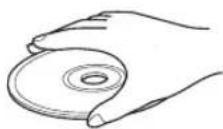
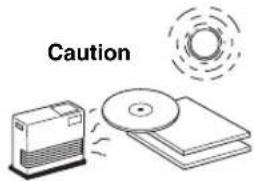
- If a disc becomes dirty, wipe it with a clean, dry cloth from the center out to the edge. Do not use record cleaner or paint thinner.
- To avoid malfunction, do not use a commercially available lens cleaner.
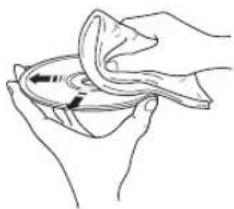
natural_image
Line drawing of hands cleaning a surface with a cloth (no text or symbols)Audio formats Audio information
■Dolby Digital
Dolby Digital is a digital surround sound system that gives you completely independent multi-channel audio. With 3 front channels (left, center, and right), and 2 surround stereo channels, Dolby Digital provides 5 full-range audio channels. With an additional channel especially for bass effects, called LFE (low frequency effect), the system has a total of 5.1-channels (LFE is counted as 0.1 channel). The DVD receiver downmixes the multi-channel audio to 2 channel so that you can enjoy Dolby Digital sources easily.
■Linear PCM (LPCM)
A signal that is changed to digital format without compression. A CD is recorded with 16-bit sound at 44.1 kHz, while DVD recording is anywhere from 16 bits at 48 kHz to 24 bits at 192 kHz, which makes it a higher quality sound than CD. This signal also has a type called Packed PCM (P.PCM) that can be compressed without any loss of data.
■Dynamic range
The difference between the smallest sound that can be heard above the equipment noise and the biggest sound that can be heard without distortion is the dynamic range.
■Sampling frequency and quantized bit rate
When converting an analog signal to digital, the number of times the signal is sampled per second is called the sampling frequency, while the degree of fineness when converting the sound level into a numeric value is called the quantized bit rate.
The frequency band that can be played back is determined by the sampling rate, while the dynamic range expressing the difference in sound level is determined by the quantized bit rate. In principle, the higher the sampling rate, the wider the frequency range that can be played back, and the higher the quantized bit rate, the finer the sound that can be reproduced.
■Track (CD/Video CD)
A CD or Video CD can be divided into a number of segments (tracks). Each division is called a title number.
Video signal information Copyright and logo marks
■Component video signal
With the component video signal system, the video signal is separated into the Y signal for the luminance and the P_B and P_R signals for the chrominance. Color can be reproduced more faithfully with this system because each of these signals is independent. The component signal is also called the “color difference signal” because the luminance signal is subtracted from the color signal.
Decoder
A device that converts encoded data on DVD and other media back to its original audio or video signal.
■Film and video data
In general, DVD media can be classified into the 2 types below.
- Film Data
Video recorded at 24 frames/second. (The film used for shooting movies is recorded at 24 frames/second.)
Recently 30 frames/second progressive video has made its debut.
• Video Data
Video recorded at 30 frames/second.
DVD receiver will automatically recognize whether the source recorded on DVD is film or video, then select the best method to convert it into progressive output.
■Interlace and progressive outputs
Up to now the standard video signal has been NTSC with 525i (i: interlaced) scan lines. In contrast, 525p (p: progressive) is a high-density signal with double the number of scan lines.
■NTSC
NTSC is a video signal system (525 lines, 30 frames per second) used in North America, Central America, a number of South American countries, and some Asian countries, including Japan.
PAL
PAL is a video signal system (625 lines, 25 frames per second) used in the United Kingdom, much of the rest of western Europe, several South American countries, some Middle East and Asian countries, several African countries, Australia, New Zealand, and other Pacific island countries.
■Title, Chapter (DVD Video)
DVD video lets you divide a disc in a big way by titles or a small way by chapters. Each division is either called a title number or a chapter number.
This product incorporates copyright protection technology that is protected by method claims of certain U.S. patents and other intellectual property rights owned by Macrovision Corporation and other rights owners. Use of this copyright protection technology must be authorized by Macrovision Corporation, and is intended for home and other limited viewing uses only unless otherwise authorized by Macrovision Corporation. Reverse engineering or disassembly is prohibited.

Manufactured under license from Dolby Laboratories. "Dolby" and the double-D symbol are trademarks of Dolby Laboratories.

“DTS” and “DTS DIGITAL OUT” are trademarks of Digital Theater Systems, Inc.
MPEG Layer-3 audio decoding technology licensed from Fraunhofer IIS and Thomson multimedia.

“DivX”, “DivX Certified”, and associated logos are trademarks of DivXNetworks, Inc and are used under license.
SPECIFICATIONS
AMPLIFIER SECTION
- Minimum RMS output power per channel (20 kHz Factory LPF) (6 Ω, 1 kHz, 0.18% THD).... 20 W + 20 W
• Maximum RMS output power per channel (20 kHz Factory LPF) (6 Ω, 1 kHz, 10% THD).... 30 W + 30 W - Total Harmonic Distortion AUX etc (1 Channel Driven, 1 kHz).... less than 0.08%
- Input sensitivity/Impedance AUX etc. 300 mV/47 kΩ
- Frequency Response AUX etc....10 Hz to 22 kHz ±3dB
- Signal to Noise ratio (20 kHz Factory LPF, IHF-A network, Shorted) AUX etc (0 dB Input)....93 dB
VIDEO SECTION
• Video Signal Level Video .... 1 Vp-p/75 Ω
Component.... 1 Vp-p/75 Ω (Y)
0.7 Vp-p/75 Ω (PB, PR)
Signal to Noise ratio....72 dB
TUNER SECTION
FM Section
- Tuning Range 87.50 to 108.00 MHz
- Signal to Noise ratio (Mono)....75 dB
- Sensitivity (S/N 30 dB) 1.0 μV
AM Section
- Tuning Range U.S.A. and Canada models .... 530 to 1700 kHz Other models .... 522 to 1629 kHz
- Signal to Noise ratio....32 dB
- Sensitivity (S/N 20 dB)....700 V
CD/DVD PLAYER SECTION
- Signal to Noise ratio....95 dB
- Total Harmonic Distortion 0.007%
- Separation....90 dB
AUDIO FORMAT
• Dolby Digital/MPEG decode (not decode DTS)
- PCM DATA: 16 bit
- LPCM DATA: 20/24 bit
Fs: 44.1, 48 kHz support/88.2, 96 kHz downmix support
• MP3: 32 kbps to 320 kbps, 16 kHz to 48 kHz sampling rate
• WMA: Up to 192 kbps (not support 32 kbps), 32 kHz, 44.1 kHz, 48 kHz sampling rate
- Support mono and stereo WMA/MP3 and VBR files
GENERAL
• Power Supply U.S.A. and Canada models..... AC 120 V, 60 Hz
Australia model ...... AC 240 V, 50 Hz
U.K. and Europe models ...... AC 230 V, 50 Hz
Korea model.... AC 220 V, 60 Hz
Asia model.... AC 220–240 V, 50/60 Hz
General model ...... AC 110–120 V, 50/60 Hz
• Power consumption ....30 W
- Standby Power consumption U.S.A. and Canada models.... 0.9 W
Australia model 1.1 W
U.K. and Europe models 1.0 W
Korea model....1.0 W
Asia model....1.1 W
General model 0.9 W
- Laser Pickup Type ......Semiconductor laser GaAIAs
Wave length 650 nm (DVD), 790 nm (VCD/CD)
Output Power.... 1.45 mW (DVD), 1.13 mW (VCD/CD)
- Dimensions (W x H x D)....215 x 112.8 x 295.9 mm
(8.46 x 4.44 x 11.65 inch)
- Weight....2.65 kg
(5.84 lbs)
- Operating Temperature Range...... +5 to +35°C (41 to 95°F)
- Operating Humidity Range......5 to 90% (No Condensation)
Specifications are subject to change without notice.
ATTENTION: VEUILLEZ LIRE CE QUI SUIT AVANT D'UTILISER L'APPAREIL.
ACCESSOIRES FOURNIS.... 2
COMMANDES ET FONCTIONS.... 3
Face avant .... 3
Affichage 4
(NTSC/BALAYAGE PROGRESSIF) ......31
PROFITER DES FICHIERS MULTIMEDIA
SUR LES DISQUES....32
ACCORD DES STATIONS RADIO....33
Piles (x2)
(AA, R06, UM-3)
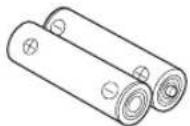
natural_image
Line drawing of a coiled cable with connectors (no text or symbols)natural_image
Line drawing of a coiled cable with two connectors (no text or symbols)Antenne cadre AM
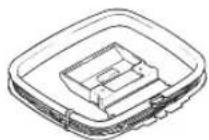
COMMANDES ET FONCTIONS
Face avant
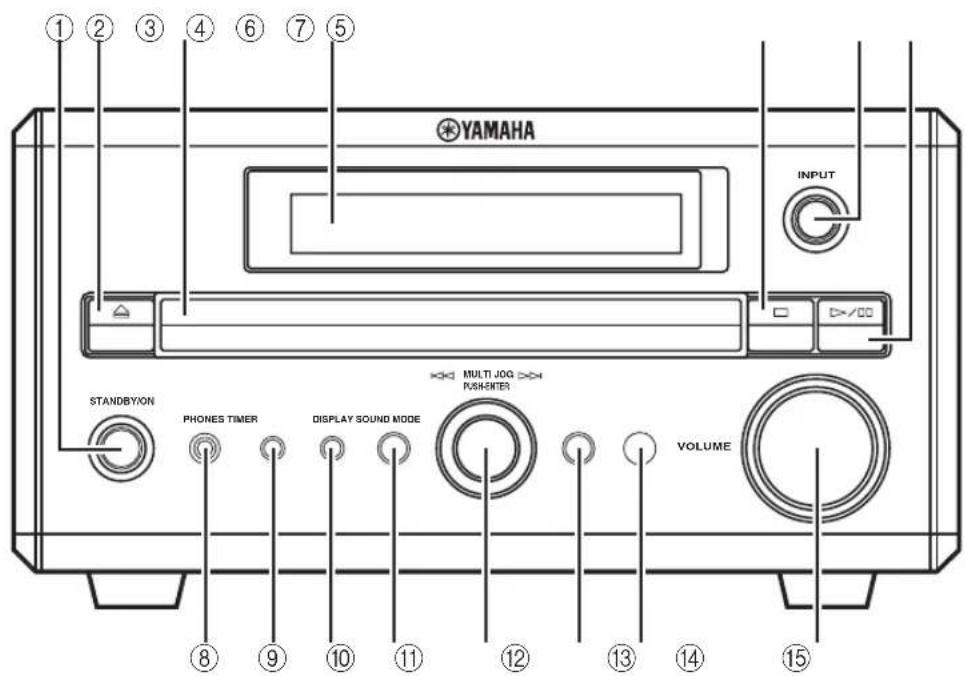
①STANDBY/ON
natural_image
Hand pressing a button on a mechanical component with an arrow indicating motion (no text or symbols)natural_image
Illustration of hands using a tool to adjust or install a mechanical component (no text or symbols visible)flowchart
graph TD
    A["Screen with monitor"] --> B["Printer with grid"]
    B --> C["Printer with output device"]
    C --> D["Output device"]
natural_image
Line drawing of a hand inserting a cable into a double door (no text or symbols)natural_image
Line drawing of a hand inserting a double door into a first two drawers (no text or symbols)■Pour commander la lecture
Appuyez sur ▷.

natural_image
Line drawing of hands holding a cloth over a tray with an arrow indicating motion (no text or symbols)GLOSSAIRE
natural_image
Line drawing of a coiled cable with two connectors (no text or symbols)Video-Cinch-Kabel
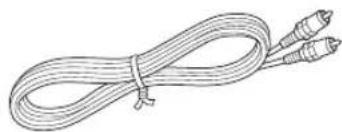
natural_image
Line drawing of a coiled cable with two connectors (no text or symbols)MW-Rahmenantenne
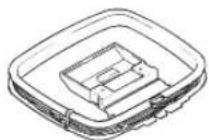
BEDIENUNGSELEMENTE UND FUNKTIONEN
Frontblende
①STANDBY/ON
natural_image
Hand inserting a card into a grid device (no text or symbols visible)Rot: positiv (+) Schwarz: negativ (−)
natural_image
Illustration of a hand using a tool to adjust or install a mechanical component (no text or symbols visible)Rot: positiv (+) Schwarz: negativ (−)
flowchart
graph TD
    A["Screen with monitor"] --> B["Internal component with grid"]
    B --> C["Printer with output"]
    C --> D["Control panel with indicator"]
natural_image
Line drawing of a hand inserting a screw into a two-hole cabinet (no text or symbols)natural_image
Line drawing of a hand inserting a double door into a single cabinet (no text or symbols)flowchart
graph TD
    A["SLEEP-30"] --> B["SLEEP-60"]
    B --> C["SLEEP-120"]
    C --> D["Einschlaf-Timer aus"]

(NTSC/PROGRESSIVE SCAN) DVD-V
natural_image
Line drawing of hands holding a cloth over a bowl with a curved arrow indicating direction (no text or symbols)GLOSSAR
ANSLUTNING AV HÖGTALARE....7
natural_image
Line drawing of a coiled cable or connector with two connectors (no text or symbols)natural_image
Line drawing of a coiled cable with two connectors (no text or symbols)AM-ramantenn
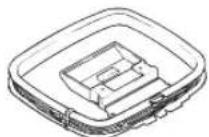
natural_image
Hand inserting a component into a grid-like structure with an arrow indicating direction (no text or symbols)Röd: positiv (+)
Svart: negativ (−)
natural_image
Illustration of a hand using a tool to adjust or install a mechanical component (no text or symbols visible)Röd: positiv (+)
Svart: negativ (−)
flowchart
graph TD
    A["Device with monitor"] --> B["Computer monitor with screen"]
    B --> C["Computer monitor with monitor"]
    C --> D["Computer monitor with monitor"]
    D --> E["Computer monitor with monitor"]
natural_image
Illustration of a hand inserting a plug into a two-hole notebook (no text or symbols)4 Släpp upp tabben.
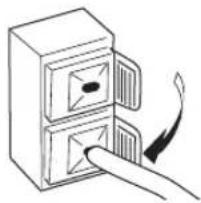
natural_image
Line drawing of a hand inserting a card into a two-tiered drawer (no text or symbols)flowchart
graph TD
    A["SLEEP-30"] --> B["SLEEP-60"]
    B --> C["SLEEP-120"]
    C --> D["Insomningstimer av"]
#
natural_image
Line drawing of hands cleaning a surface with a cloth (no text or symbols)Ljudformat Ljudinformation
■Dolby Digital
natural_image
Line drawing of a coiled cable or connector with two connectors (no text or symbols)Cavo video a spinotti
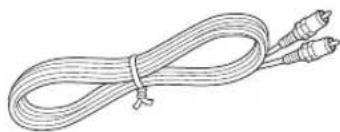
natural_image
Line drawing of a coiled cable with two connectors (no text or symbols)Antenna a telaio AM
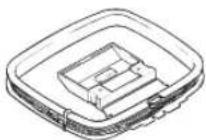
COMANDI E FUNZIONI
Pannello anteriore
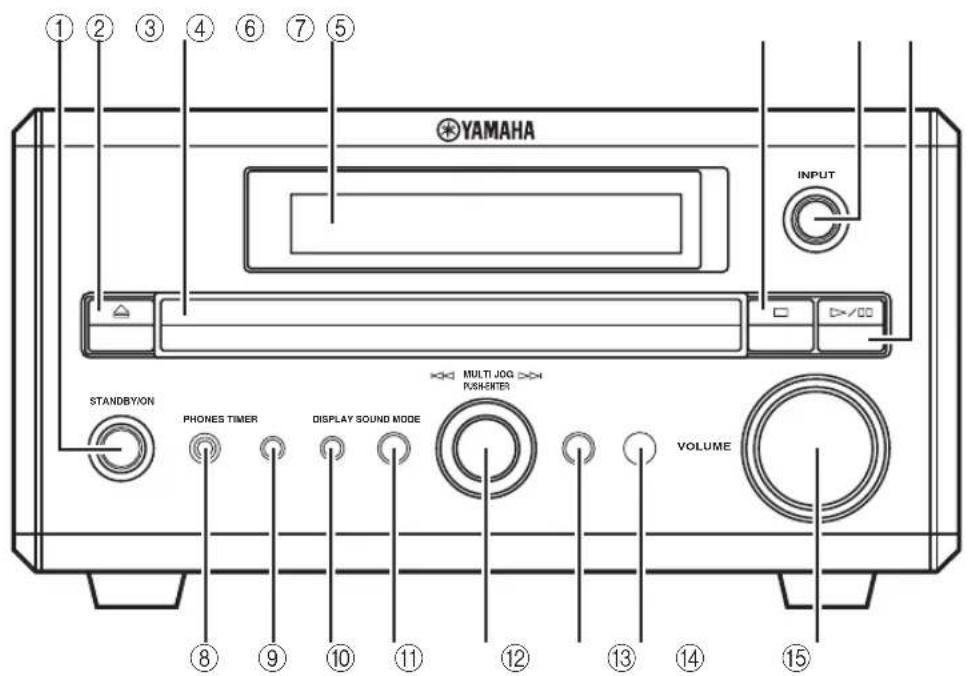
①STANDBY/ON
natural_image
Hand inserting a component into a grid-like structure with an arrow indicating direction (no text or symbols)natural_image
Illustration of a hand using a tool to adjust or install a mechanical component (no text or symbols visible)natural_image
Line drawing of a hand inserting a cable into a two-hole cabinet (no text or symbols)natural_image
Line drawing of a hand inserting a double door into a first two stacked compartments (no text or symbols)flowchart
graph TD
    A["SLEEP-30"] --> B["SLEEP-60"]
    B --> C["SLEEP-120"]
    C --> D["Spegnimeto via timer off"]
=
Premere RANDOM.
(NTSC/PROGRESSIVE SCAN)
DVD-V
- PTY (Program Type)
$$ (R O C K, P O P, J A Z Z, C L A S S I C, F L A T) $$
natural_image
Line drawing of two hands holding a cloth or towel, with a curved arrow indicating direction (no text or symbols)GLOSSARIO
Pilas (x2)
(AA, R06, UM-3)
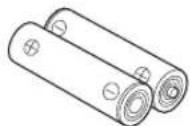
Antena de FM interior
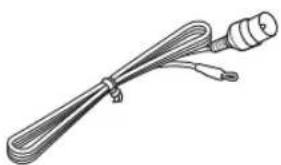
natural_image
Line drawing of a coiled cable or wire with two connectors (no text or symbols)natural_image
Line drawing of a coiled cable with two connectors (no text or symbols)natural_image
Hand inserting a component into a grid-like structure with an arrow indicating direction (no text or symbols)natural_image
Illustration of hands using a tool to adjust or install a mechanical component (no text or symbols visible)flowchart
graph TD
    A["Screen with monitor"] --> B["Computer monitor with screen"]
    B --> C["Printer with output"]
    C --> D["Printer with output"]
2 Mantenga presionada la lengüeta.
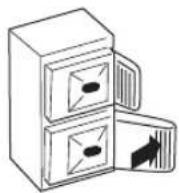
natural_image
Line drawing of a hand inserting a cable into a two-hole cabinet (no text or symbols)natural_image
Illustration of a hand inserting a double door into a multi-tiered cabinet (no text or symbols)natural_image
Line drawing of two hands holding a cloth or towel, with a curved arrow indicating direction (no text or symbols)HANDIGE WEERGAVEFUNCTIES ...... 23
natural_image
Illustration of a coiled cable with two connectors (no text or symbols)Videokabel (tulpstekker)
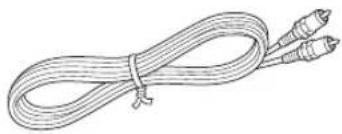
natural_image
Line drawing of a coiled cable with two connectors (no text or symbols)AM ringantenne
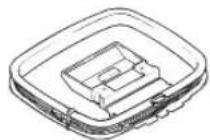
BEDIENINGSORGANEN EN FUNCTIES
Voorpaneel
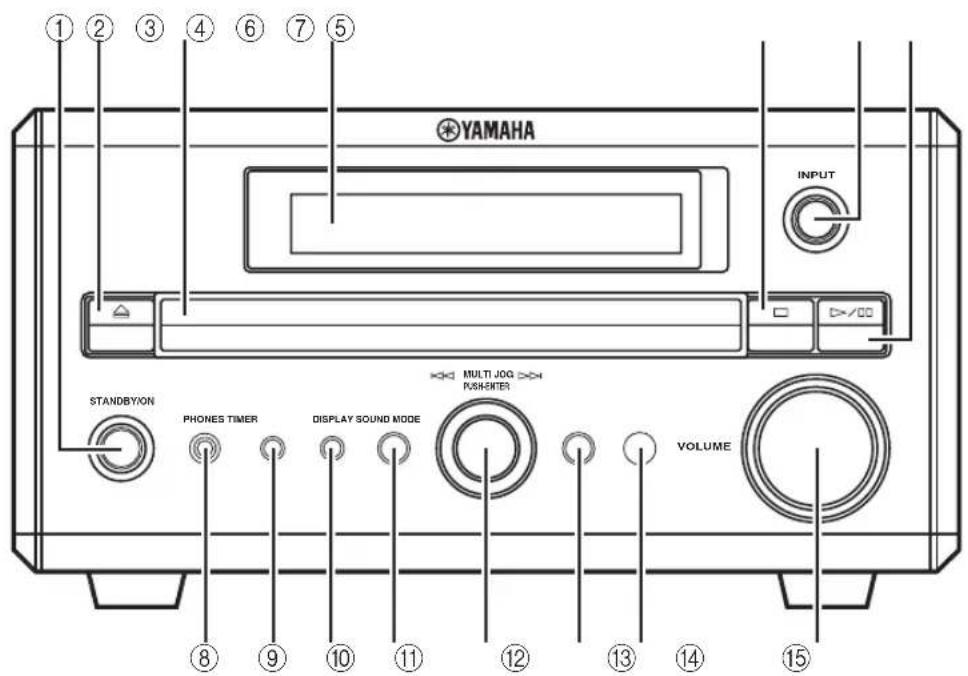
①STANDBY/ON
natural_image
Hand inserting a component into a grid-like structure with an arrow indicating direction (no text or symbols)natural_image
Illustration of hands using a tool to adjust or install a mechanical component (no text or symbols visible)flowchart
graph TD
    A["Monitor"] --> B["Device with internal components"]
    B --> C["Device with internal components"]
    C --> D["Device with internal components"]
    D --> E["Device with internal components"]
natural_image
Illustration of a hand inserting a cable into a two-hole refrigerator (no text or symbols)natural_image
Illustration of a hand inserting a double-drawer into a multi-garden drawer (no text or symbols)flowchart
graph TD
    A["SLEEP-30"] --> B["SLEEP-60"]
    B --> C["SLEEP-120"]
    C --> D["Slaaptimer uit"]
#
flowchart
graph TD
    A["Root"] --> B["Album (Map)"]
    A --> C["Fragment (Bestand)"]
Wat is MP3?
HANDIGE WEERGAVEFUNCTIES
natural_image
Line drawing of two hands holding a cloth or towel, with no visible text or symbolsWOORDENLIJST
natural_image
Line drawing of a coiled cable with two connectors (no text or symbols)natural_image
Line drawing of a coiled cable with two connectors (no text or symbols)Рамочная АМ-антенна
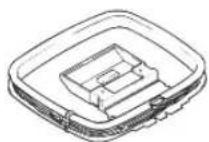
natural_image
Hand inserting a component into a grid-like structure with arrows indicating direction (no text or symbols)natural_image
Illustration of hands using a tool to adjust or install a mechanical component (no text or symbols visible)natural_image
Line drawing of a hand inserting a cable into a two-hole cabinet (no text or symbols)4 Опустите защелку.
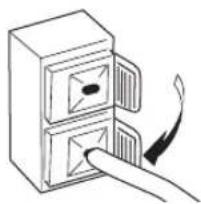
natural_image
Line drawing of a hand inserting a door into a second drawer (no text or symbols)$$ (R O C K, P O P, J A Z Z, $$
$$ \text { CLASSIC, FLAT) } $$
natural_image
Line drawing of hands holding a cloth or towel over a tray (no text or symbols)СПРАВОЧНИК
Aiwa 294/276/283/284
Akai 295/296
Alba 296
AOC 297
Audiovox 285
Belcor 297
Bell & Howell 292
Bestar 298
Blaupunkt 229/222
Blue sky 298
Brandt 223
Brocsonic 297
Bush 296
By Design 201/202
Clatronic 298
Craig 224
Croslex 225/298
Curtis Mathis 297/226
Dacwoo 297/298/224/227/228
Dayton 239
Dwin 293/281
Emerson 297/224/239/232
Ferguson 223/265/266
First line 298
Fisher 295/233
Fraba 298
Fujitsu 289
Funai 277/278
GE 293/297/234/235/ 236
Goodmans 296/298/223
Grundig 229/238/249
Hitachi 297/239/242/243/ 285
ICE 296
Irradio 296
Itt/Nokia 244/245
JC Penny 293/297/234/237
JVC (Victor) 296/246/247
Kendo 298
KTV 297/239/285
LG/Goldstar 297/298/239/237
Loewe 298/248
LXI 293/297/225/226/ 233/298
Magnavox 297/225/239/298
Marantz 286/210
Matsui 295
Medion 203/204/298
Memorex 297/216
Mitsubishi 299/297/259/287
Nad 226/255
NEC 297/252/282
Nokia 244/245
Nokia Oceanic 245
Nordmende 265/266
Onwa 296
Panasonic 234/235/236/253/288/211
Philco 297/225/239/298
Philips 225/205/298
Pioneer 226/235/254/255/268
Portland 297/256
Proscan 293/221/231/241/251
Proton 297/250/260/270
Quasar 234/235
Radio Shack 299/293/297
RCA 293/297/234/256/
257/258/221
SABA 223/269/265/266
Sampo 281/297/280
Samsung 297/239/248/262/
275
Sanyo 295/233/279/272/273/274/212
Schneider 296
Scott 297
Sharp 292/239/232/213
Siemens 229
Signature 216/292
Sony 263/214
Sylvania 297/225/298
Symphonic 217/218/219
Telefunken 269/264/265/266
Thomson 223/266
Toshiba 292/226/267/215
Videch 297/242
Wards 297/239/232/216
Cable TV
Digital Broadcast Satellite tuner
Echostar 822
GE 837/838/839
General Instrument
823
Hitachi 824
Hughes 843/844/845/846
JVC (Victor) 822
Magnavox 825
Panasonic 826/829
Philips 825/843/844/845/
846/847/848/849
Primestar 827
Proscan 837/838/839/842
Radio Shack 828
RCA 837/838/839/842
Samsung 852
Sony 832/835
Toshiba 833/836
Uniden 825
Zenith 834
CAUTION
Use of controls or adjustments or performance of procedures other than those specified herein may result in hazardous radiation exposure.
AVERTISSEMENT
CLASS 1 LASER PRODUCT
LASERE KLASSE 1 PRODUKT
CAUTION-VISIBLE AND INVISIBLE LASER RADIATION WHEN OPEN. DO NOT STARE INTO BEAM OR VIEW DIRECTLY WITH OPTICAL INSTRUMENTS.
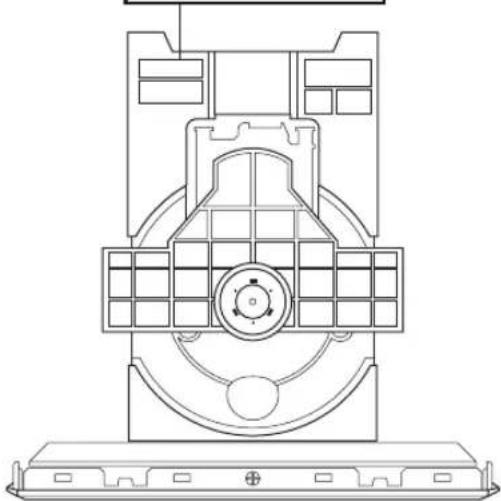
natural_image
Technical line drawing of a mechanical component with no visible text or symbols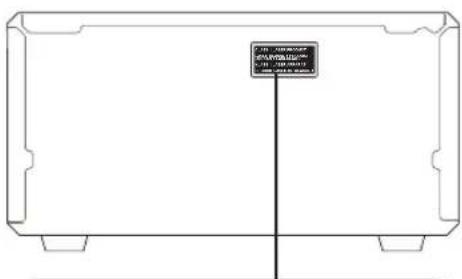
CLASS 1 LASER PRODUCT
LASER KLASSE 1 PRODUKT
LUOKAN 1 LASERLAITE
KLASS 1 LASER APPARAT
PRODUIT LASER DE CLASSE 1

© 2005 YAMAHA CORPORATION All rights reserved.